-
Solo Business Courses
-
 Others
-
Overseas Tutorials
-
Photography & Editing
-
Community & Private Domain
-
Self-Media Writing & Copywriting
-
Side Income Projects
-
E-commerce
-
Short Video & Live Streaming
-
Artificial Intelligence (AI)
-
Software & Tools
-
Operating Systems
-
Plugins & Scripts
-
MacOS Software
-
Android Software
-
Windows Software
One-Click Connect Third-Party Relay to ChatGPT, Codex, Claude: CC Switch Unifies Your AI Coding Tool Workflow
-
Game Gold-Farming Money-Making Plan: Earn 1k+ Daily, a Stable 3-Year Project Anyone Can Do in Spare Time [Revealed]
Study material — included with membership Get Membership -
Hot-game fully-automated earning: 500+ a day, no experience, simple operation - the steadiest long-term game-earning side hustle (revealed)
Study material — included with membership Get Membership -
FlyingMouse earns merit this time! Don't panic at Windows format problems — the open-source FlyingMouse format conversion tool helps, a popular GitHub gem
Study material — included with membership Get Membership -
Douyin Product-Selling Coaching Bootcamp: No On-Camera Appearance Needed, Newbies Can Produce Selling Short Videos by Following the Steps
Study material — included with membership Get Membership -
First-release game gold-farming money plan: 1K+ a day, ordinary people in spare time
Study material — included with membership Get Membership






-
FlyingMouse earns merit this time! Don't panic at Windows format problems — the open-source FlyingMouse format conversion tool helps, a popular GitHub gem
Study material — included with membership Get Membership -
LuDaShi v6.1024.4105.1121 Slim Single File
Study material — included with membership Get Membership -
2D Cartoon Animation Software Moho Pro v14.3
Study material — included with membership Get Membership -
Video Editor Aiseesoft Filmai v1.0.18
Study material — included with membership Get Membership -
To-Do Microsoft To Do v2.147 Free
Study material — included with membership Get Membership -
PR/AE/DaVinci/FCPX video Plugin Nobe OmniScope Win1.11.15 / Mac1.10.138
Study material — included with membership Get Membership


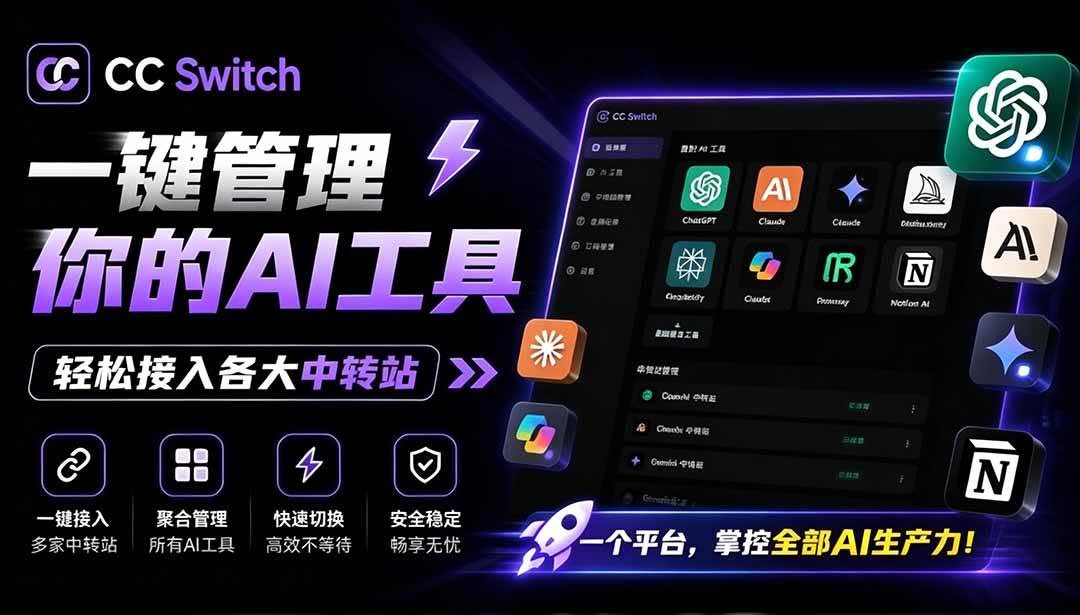
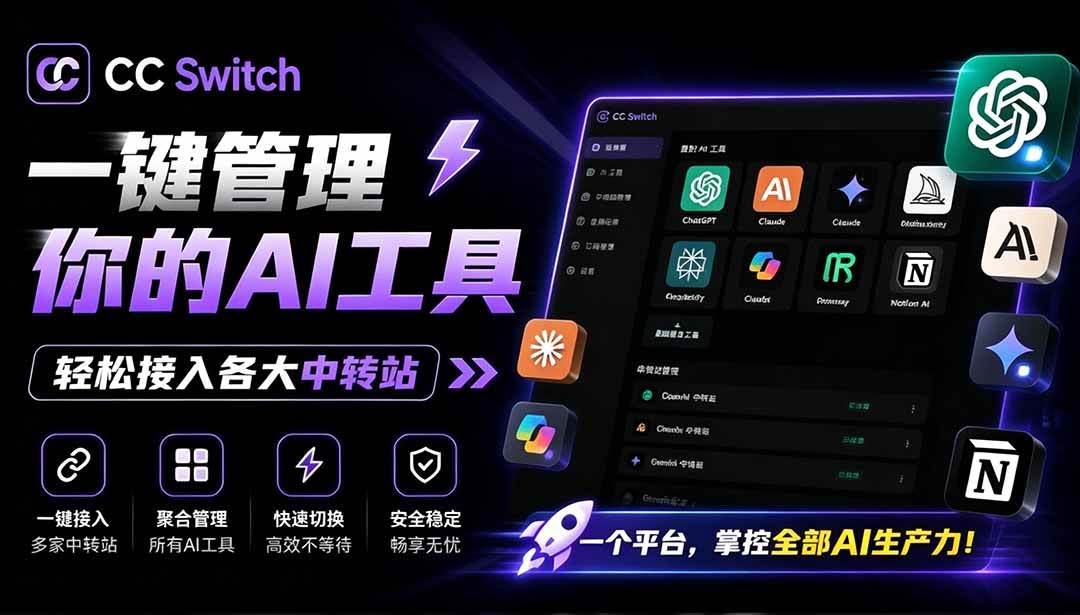
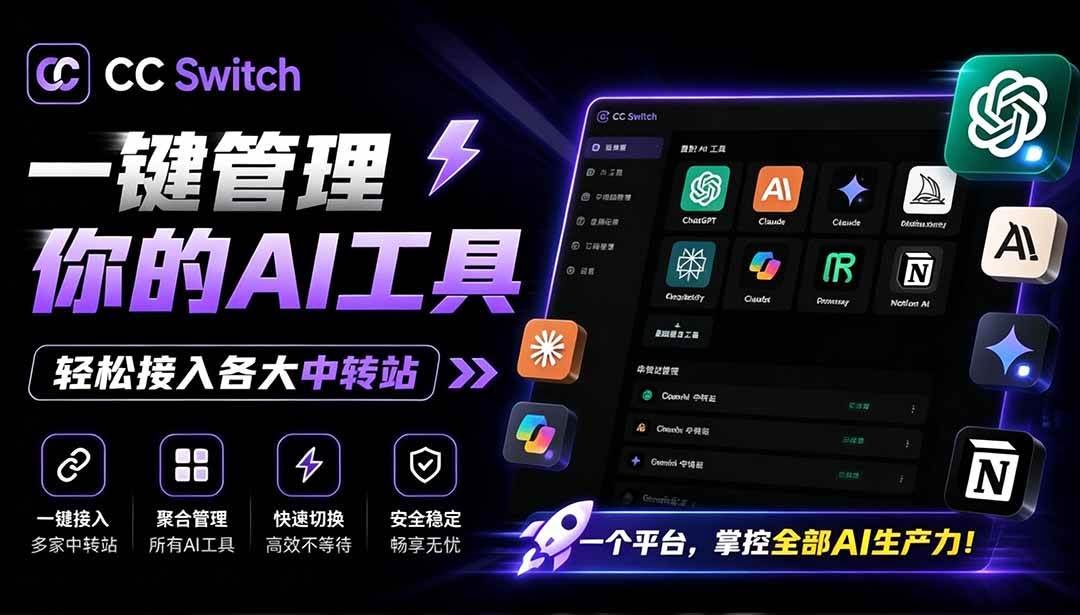
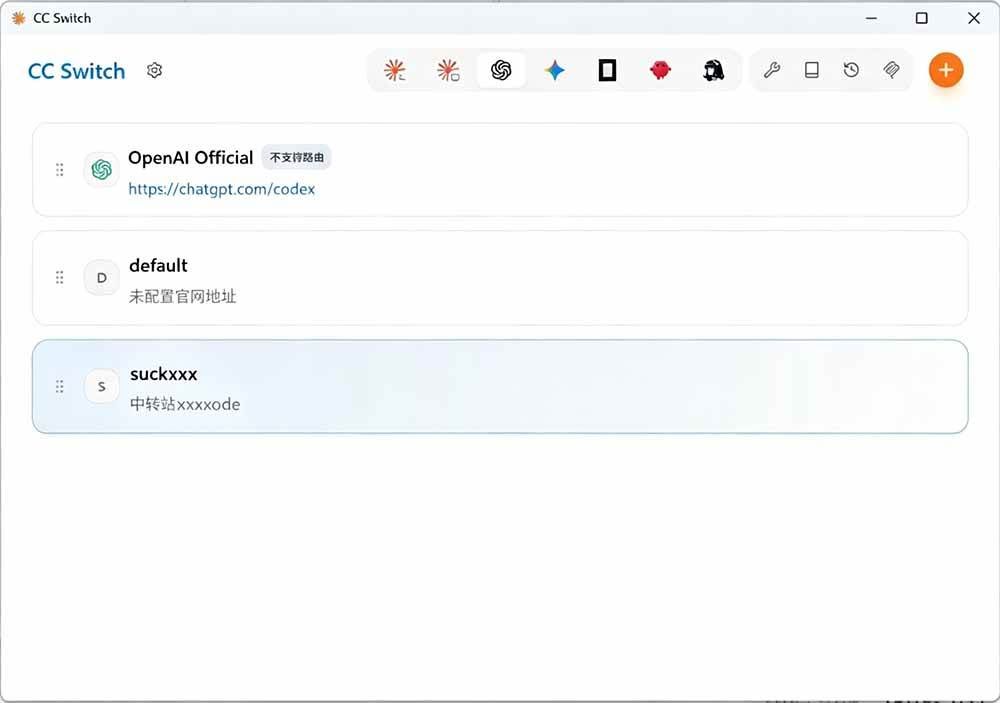
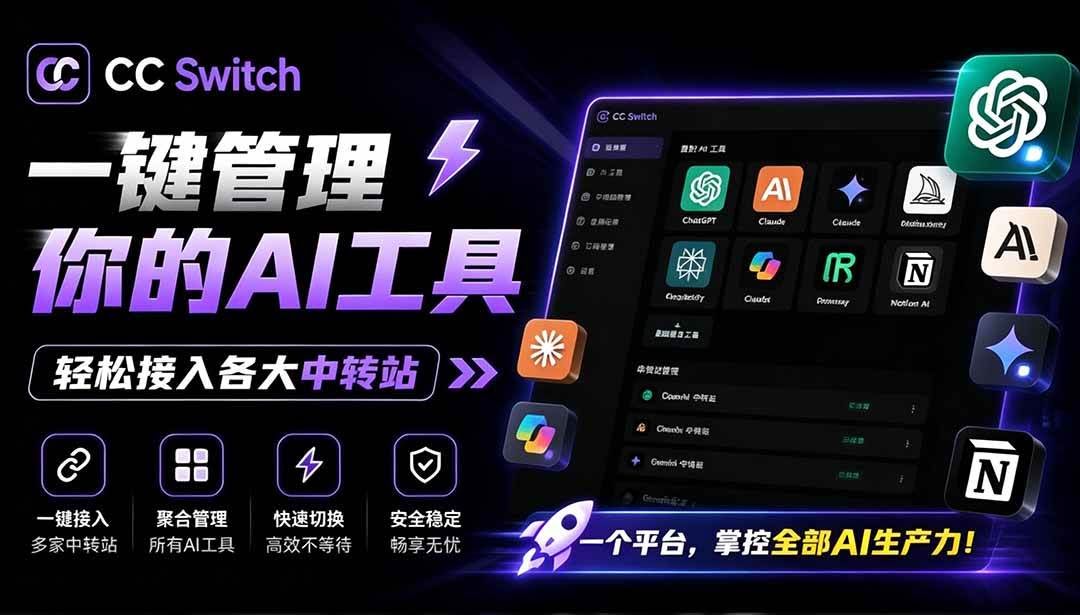
In today's growing AI coding tools ecosystem, we often need to switch between different AI tools, each with its own configuration method. Manually editing config files is tedious and error-prone. CC Switch is a desktop tool built to solve this pain point. CC Switch supports unified management of 7 AI coding tools: Claude Code, Claude Desktop, Codex, Gemini CLI, OpenCode, OpenClaw, Hermes. Its core value: no manual config file editing needed, one-click API provider switching via visual UI.
Key Highlights
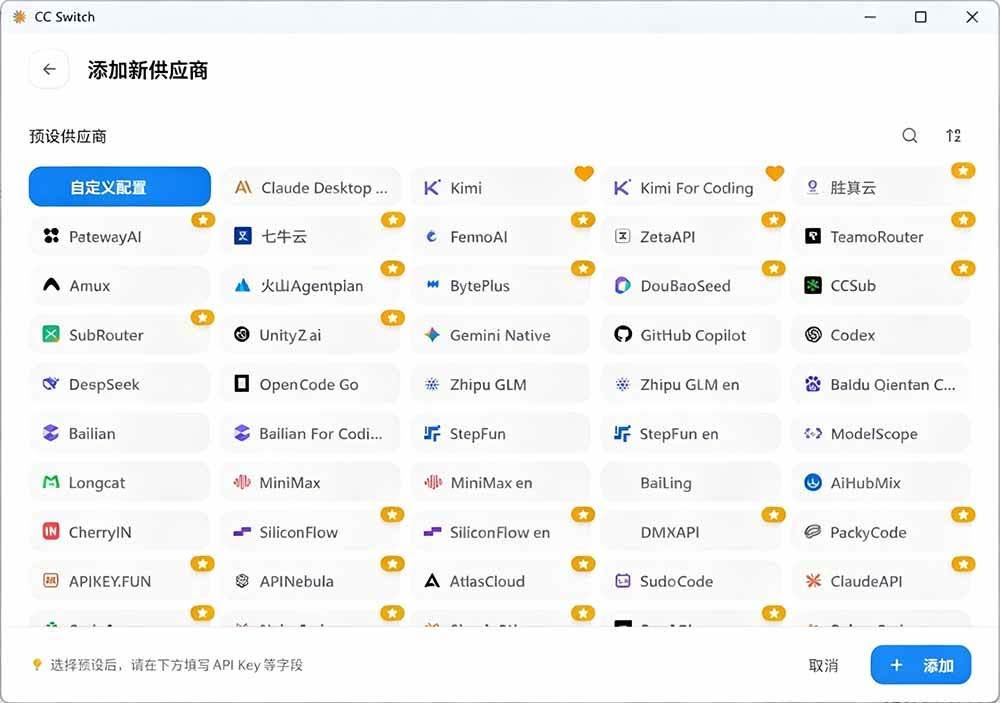
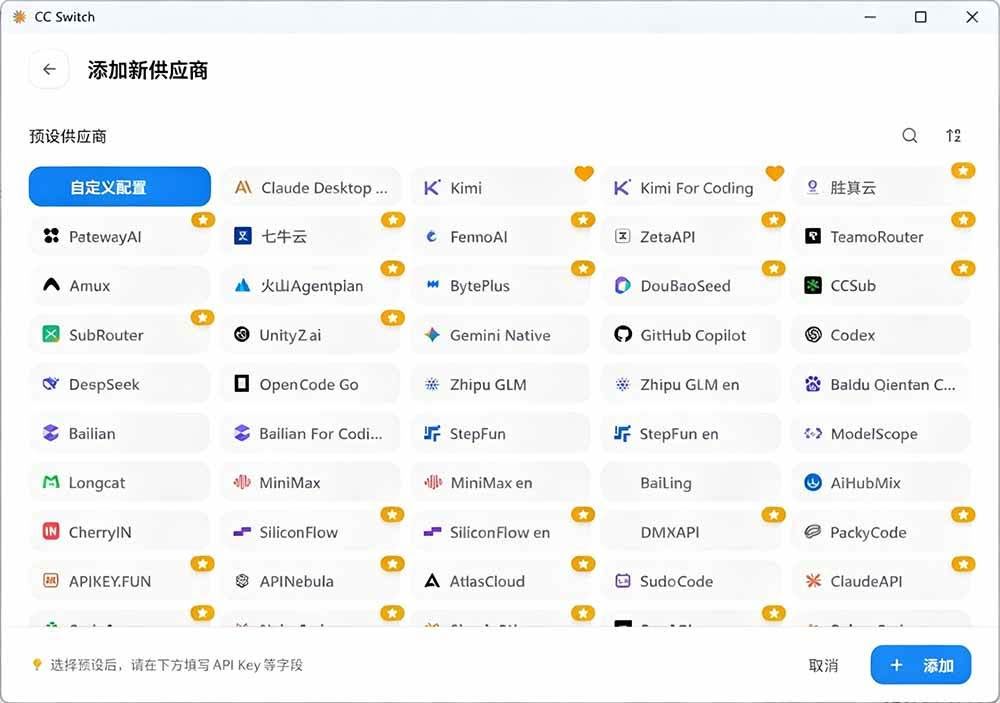
50+ built-in provider presets: covering AWS Bedrock, NVIDIA NIM, and major community relay stations
One-click switch: toggle between official login and third-party relay with one click
System tray quick switch: no need to open main window, switch directly from tray menu
Unified MCP & Skills management: sync MCP servers and skill configs across tools
Cross-platform: Windows, macOS, Linux fully covered, open-source and free
Screenshots
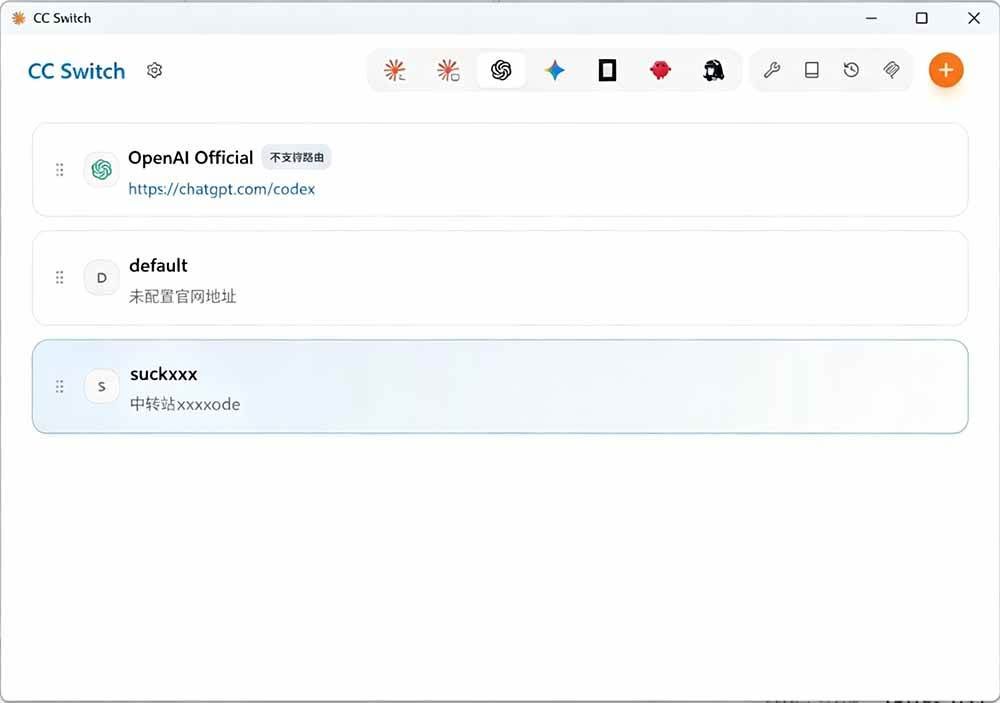
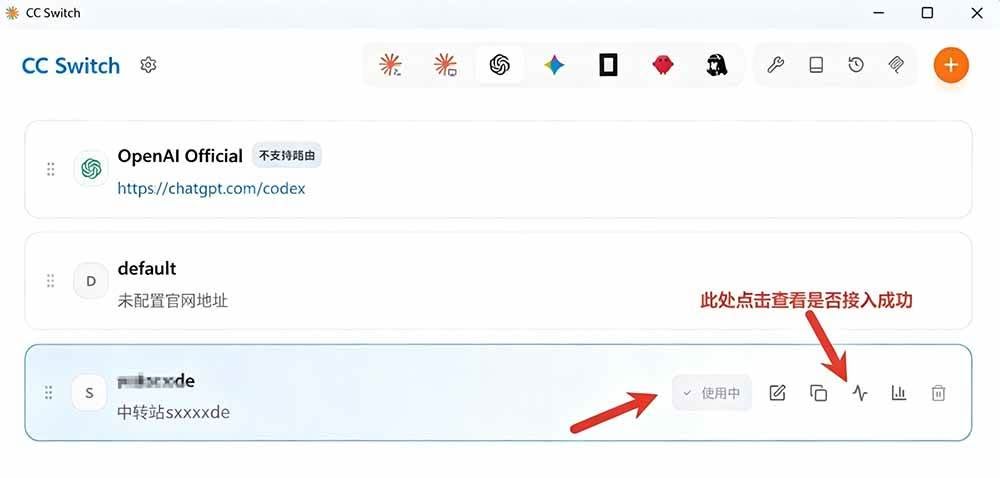
Connecting to ChatGPT
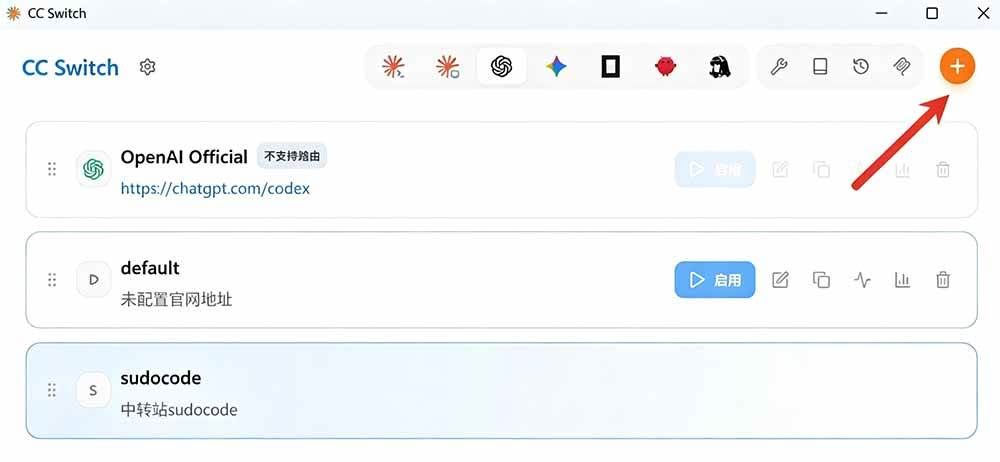
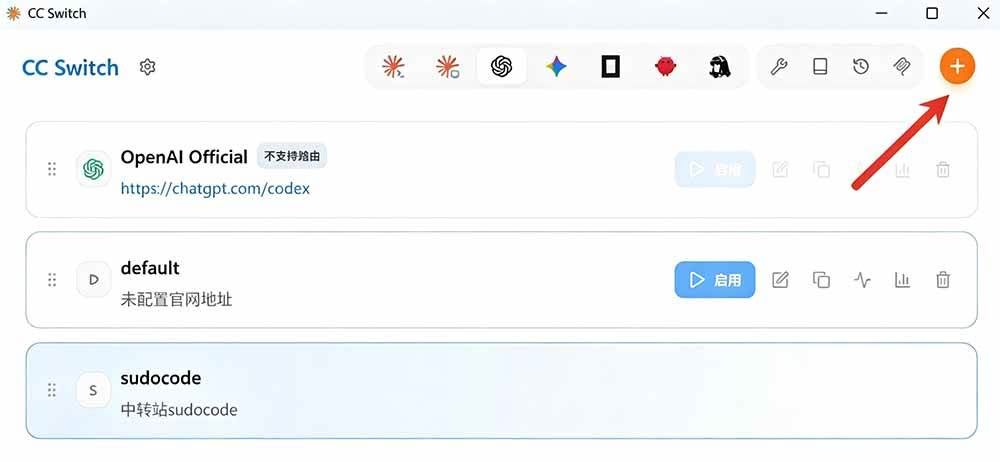
Launch CC Switch, click "Add Provider" in the main interface.
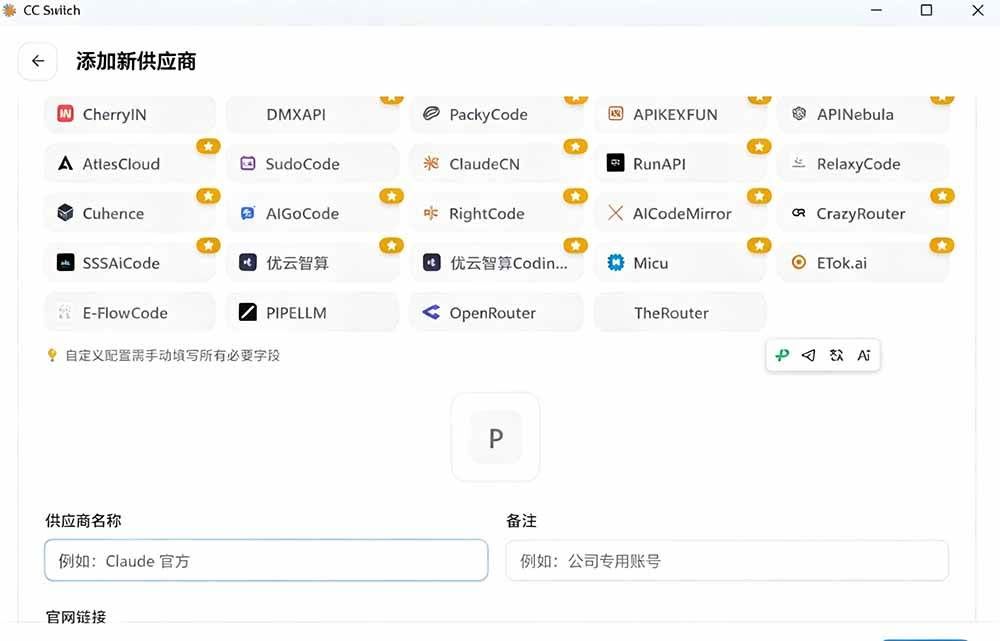
In the provider list, you have two options:
Choose from presets: scroll through 50+ built-in presets, including many community relay stations (PackyCode, AIGoCode, AICodeMirror, etc.).
Custom config: if your provider is not listed, select "Custom" and fill in manually.
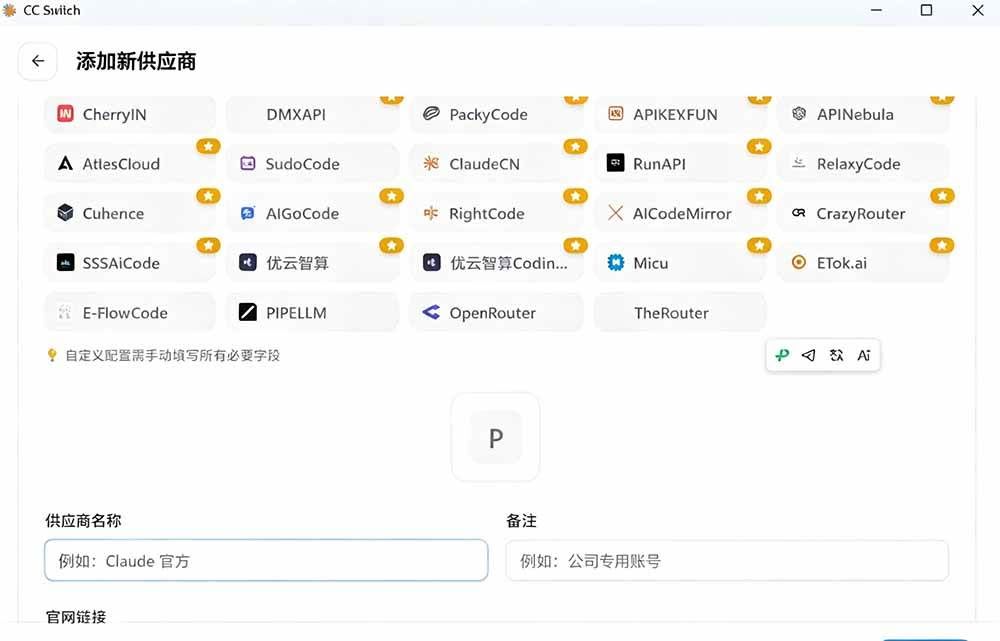
Fill in provider info:
Provider name: customize an easily recognizable name (e.g., "My ChatGPT Relay").
API type: select the corresponding tool type (Claude Code, Codex, or Gemini CLI, etc.).
Base URL: fill in the API endpoint provided by your relay station.
API Key: paste the API key obtained from your relay station.
Click "Save" and the provider is added.
Step 2: Switch to third-party provider
After adding, find your newly created config in the provider list and click "Enable" on the right. CC Switch automatically writes the config to the corresponding CLI tool's config file.
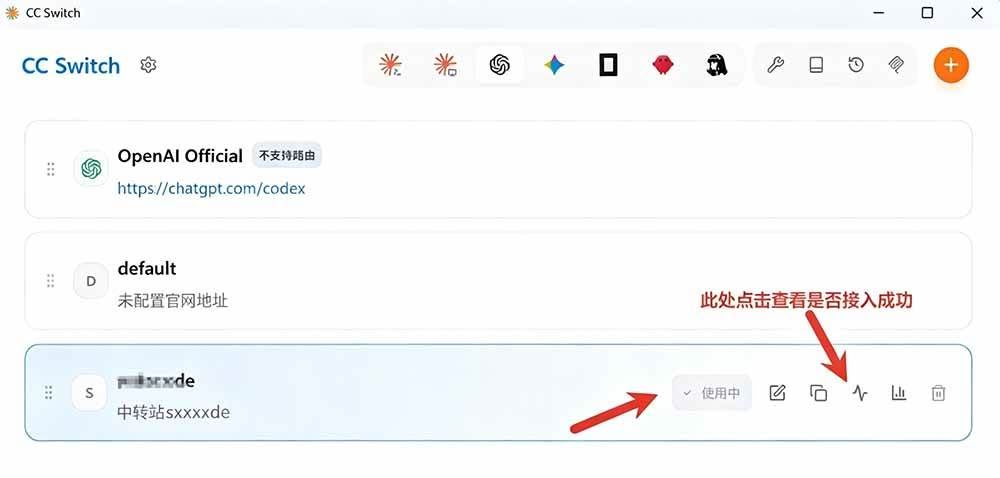
Special note: For Claude Code, no terminal restart needed after switching; other tools (Codex, Gemini CLI) require restarting the terminal or CLI process.
Step 3: Restart the software
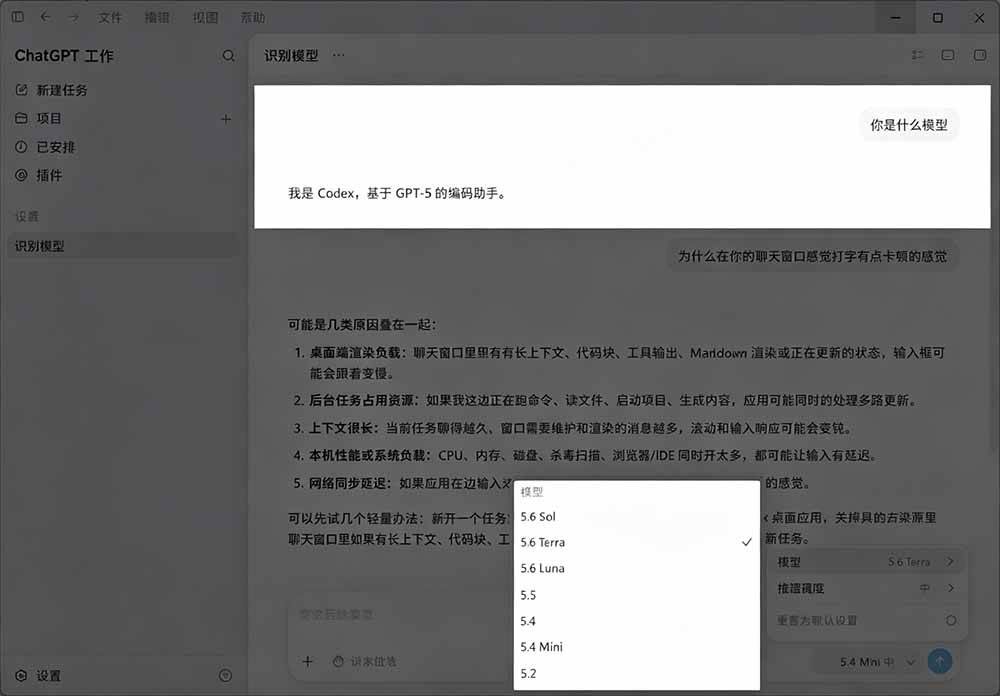
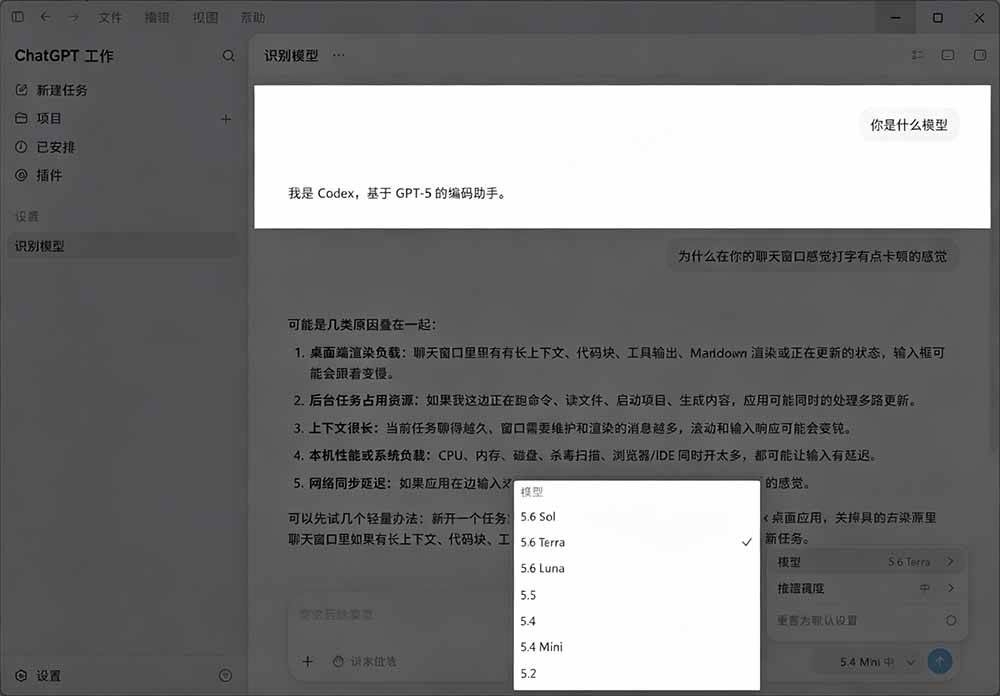
For example, if I connected ChatGPT, Codex is now built-in. Originally you needed an official account or API key to use it. After restarting and enabling CC Switch, you can enter directly.
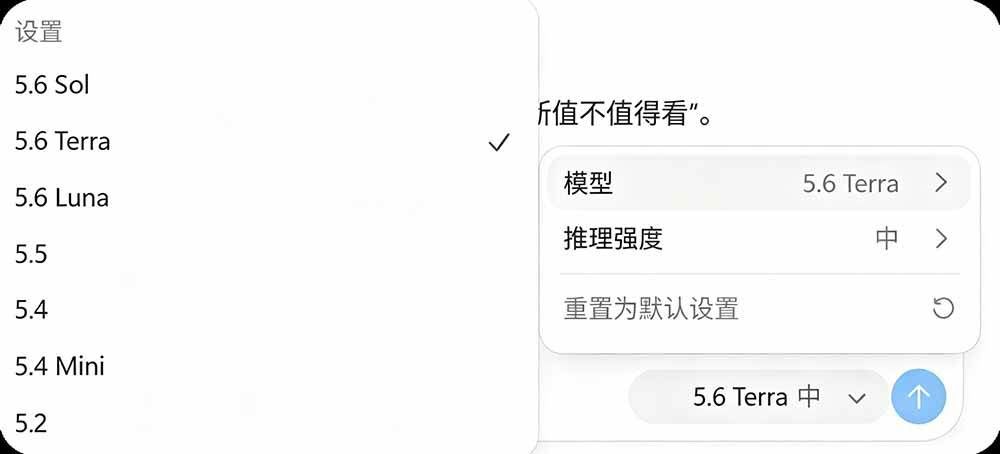
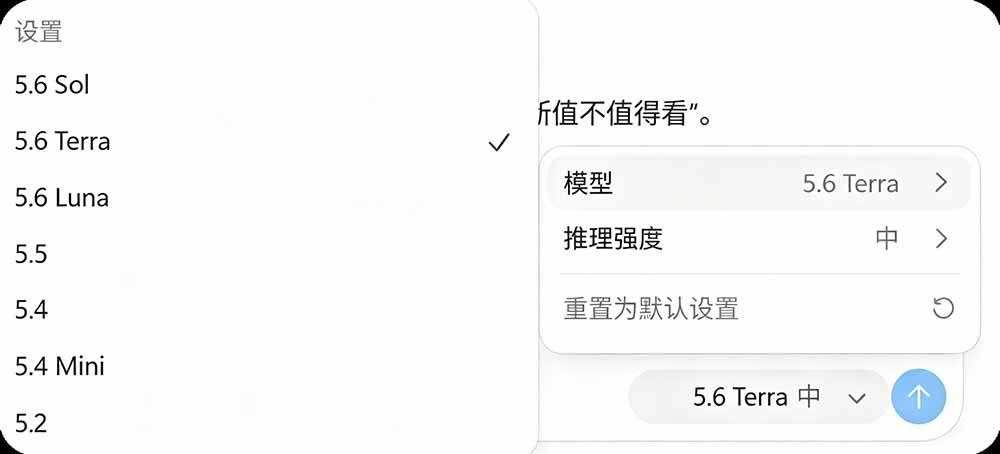
You can also use GPT-5.6
Supporting Study Materials
This course comes with a materials pack. Members receive the access link by email after requesting the course.
Related Courses

Family Comedy Short-Drama Creation Course: Benchmark Hot Accounts, AI-Assisted, Fast Start for Total Beginners, Grow Followers and Drive Product Sales

Amazon AI Automation Practical Course: AI Operating Mindset, Setting Up the Codex Environment, Risk-Control Checks and Automated Listing Copy

AI E-Commerce Data Tool Development Course: Learn Codex+BI From Zero, Build a Multi-Store Integrated Visualization Dashboard

Advanced AI Prompt Application: 15 Lessons | Universal Instruction Thinking + Multiple Output Modes + Full Industry Commercial Cases

AI Video Creation Crash Course: From Great-Case Breakdown to Five Core Modules, Fast-Track AI Video Skills for Total Beginners

AI Commercial Practice System Course: In-Depth SD Mastery + Advanced Flux Hands-On + Comfyui Workflow Building, Full Commercial Design Project Training

[National-Day Pick] AI Automation Game, 1k+ RMB a Day, Simple to Operate, Stable for Three Years! [Revealed]