-
Solo Business Courses
-
 Others
-
Overseas Tutorials
-
Photography & Editing
-
Community & Private Domain
-
Self-Media Writing & Copywriting
-
Side Income Projects
-
E-commerce
-
Short Video & Live Streaming
-
Artificial Intelligence (AI)
-
Software & Tools
-
Operating Systems
-
Plugins & Scripts
-
MacOS Software
-
Android Software
-
Windows Software




Easily Remove All Copy Restrictions on Web Pages! A Must-Have Treasure Browser Extension, One-Click Full Copy of Any Web Content, Completely Free SmartCopy
-
Game Gold-Farming Money-Making Plan: Earn 1k+ Daily, a Stable 3-Year Project Anyone Can Do in Spare Time [Revealed]
Study material — included with membership Get Membership -
Hot-game fully-automated earning: 500+ a day, no experience, simple operation - the steadiest long-term game-earning side hustle (revealed)
Study material — included with membership Get Membership -
FlyingMouse earns merit this time! Don't panic at Windows format problems — the open-source FlyingMouse format conversion tool helps, a popular GitHub gem
Study material — included with membership Get Membership -
Douyin Product-Selling Coaching Bootcamp: No On-Camera Appearance Needed, Newbies Can Produce Selling Short Videos by Following the Steps
Study material — included with membership Get Membership -
First-release game gold-farming money plan: 1K+ a day, ordinary people in spare time
Study material — included with membership Get Membership






-
FlyingMouse earns merit this time! Don't panic at Windows format problems — the open-source FlyingMouse format conversion tool helps, a popular GitHub gem
Study material — included with membership Get Membership -
LuDaShi v6.1024.4105.1121 Slim Single File
Study material — included with membership Get Membership -
2D Cartoon Animation Software Moho Pro v14.3
Study material — included with membership Get Membership -
Video Editor Aiseesoft Filmai v1.0.18
Study material — included with membership Get Membership -
To-Do Microsoft To Do v2.147 Free
Study material — included with membership Get Membership -
PR/AE/DaVinci/FCPX video Plugin Nobe OmniScope Win1.11.15 / Mac1.10.138
Study material — included with membership Get Membership



Software Introduction:
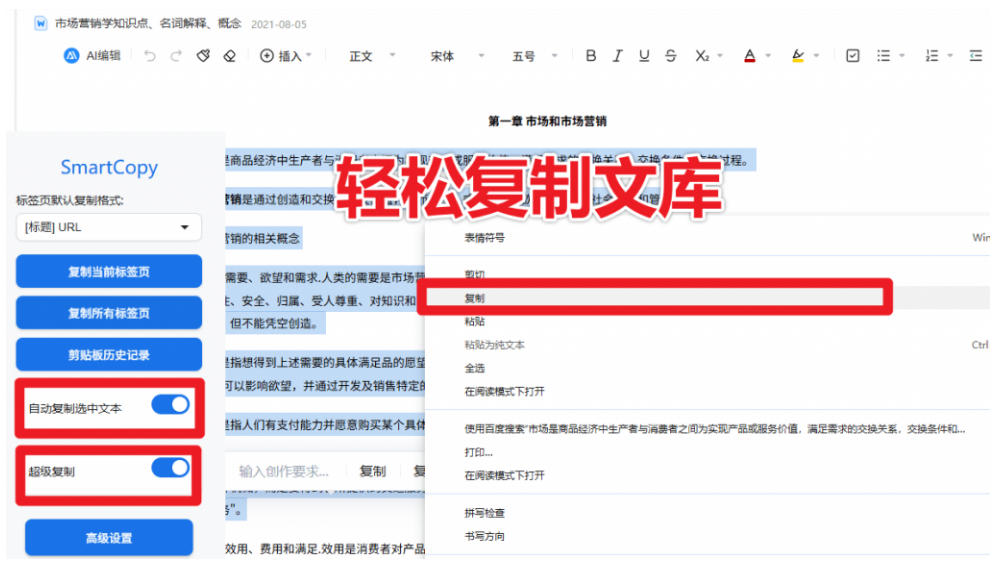
SmartCopy is a powerful Chrome extension designed to enhance your browsing experience. It helps you break through web page copy bans, right-click bans, selection bans, and paste bans with one click, intelligently copies tab titles and URLs, and provides auto-copy of selected text and super-copy features. It also includes a full clipboard history system, letting you view and reuse previously copied content at any time.
Extension Features
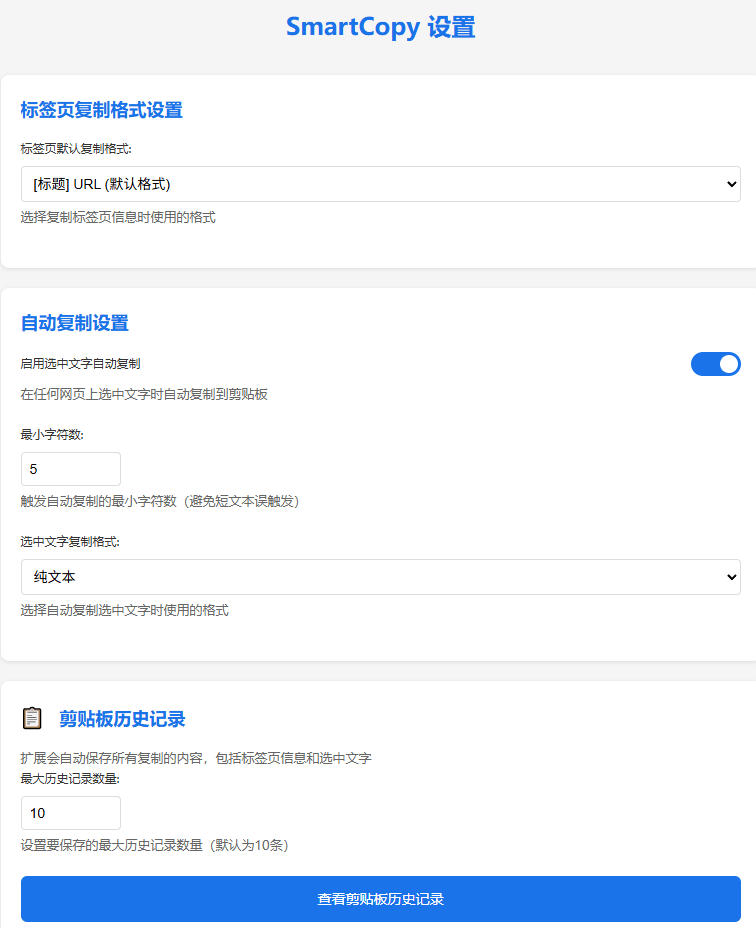
Multi-function copy support: supports copying tab titles and URLs, provides multiple formats (such as Markdown, HTML, JSON, etc.), and supports auto-copy of selected text.
Super copy function: can break through web page copy restrictions, suitable for sites like Baidu Wenku, CSDN, WeChat Official Accounts, and supports global or site-specific personalization.
Clipboard history: saves all copied content for easy viewing and reuse, supports one-click clear or deleting a single record.
Multi-language and hotkeys: supports Chinese and English interfaces, provides hotkey operations (such as Alt+1 to copy the current tab).
Privacy protection: all data is stored locally only, no personal information or browsing history is collected.
Screenshots

Usage Tutorial
1. Open the crx file I provided, then open the Chrome browser, visit the extensions page, and turn on Developer Mode in the upper right corner of the page.
2. Unzip the downloaded installation package, drag the .crx file from the folder into Google Chrome, or drag in the zip file, click Add Extension, and installation succeeds!
3. Then in extensions, turn it on, and the extension will appear on the right side of the browser.
Supporting Study Materials
This course comes with a materials pack. Members receive the access link by email after requesting the course.
Related Courses

WorkBuddy zero-basics hands-on training: even non-programmers can follow the manual steps, learn agents systematically by doing

Higgsfield cinematic animation course: one-stop creation platform, complete animation production-flow teaching

The same dance with 6 outfits switching in order: I turned an outfit-change video into a Skill

An eye-catching domestic Markdown editor: local offline high-performance note tool, free and no login required

Domestic Markdown editor: local offline high-performance knowledge-note tool, free and no login required

WorkBuddy practical blue paper: user manual and practice guide, complete combined image-text edition

Jimeng challenges a 180-second long video: one-click a 3-minute movie? Full production flow shared in detail

Super handy! Douyin video downloader, supports batch download of user works, favorites and likes lists, open-source free Better-douyin-R

Nearly 200K stars on GitHub - Harness now runs by double-click: the Harness full-platform desktop edition

Nearly 200K stars on GitHub - Harness now runs by double-click: the Harness full-platform desktop edition DSH Desktop