-
Solo Business Courses
-
 Others
-
Overseas Tutorials
-
Photography & Editing
-
Community & Private Domain
-
Self-Media Writing & Copywriting
-
Side Income Projects
-
E-commerce
-
Short Video & Live Streaming
-
Artificial Intelligence (AI)
-
Software & Tools
-
Operating Systems
-
Plugins & Scripts
-
MacOS Software
-
Android Software
-
Windows Software
Generative AI Essential Program: Detailed Illustrated FFmpeg Install Tutorial
-
Game Gold-Farming Money-Making Plan: Earn 1k+ Daily, a Stable 3-Year Project Anyone Can Do in Spare Time [Revealed]
Study material — included with membership Get Membership -
Hot-game fully-automated earning: 500+ a day, no experience, simple operation - the steadiest long-term game-earning side hustle (revealed)
Study material — included with membership Get Membership -
FlyingMouse earns merit this time! Don't panic at Windows format problems — the open-source FlyingMouse format conversion tool helps, a popular GitHub gem
Study material — included with membership Get Membership -
Douyin Product-Selling Coaching Bootcamp: No On-Camera Appearance Needed, Newbies Can Produce Selling Short Videos by Following the Steps
Study material — included with membership Get Membership -
First-release game gold-farming money plan: 1K+ a day, ordinary people in spare time
Study material — included with membership Get Membership






-
FlyingMouse earns merit this time! Don't panic at Windows format problems — the open-source FlyingMouse format conversion tool helps, a popular GitHub gem
Study material — included with membership Get Membership -
LuDaShi v6.1024.4105.1121 Slim Single File
Study material — included with membership Get Membership -
2D Cartoon Animation Software Moho Pro v14.3
Study material — included with membership Get Membership -
Video Editor Aiseesoft Filmai v1.0.18
Study material — included with membership Get Membership -
To-Do Microsoft To Do v2.147 Free
Study material — included with membership Get Membership -
PR/AE/DaVinci/FCPX video Plugin Nobe OmniScope Win1.11.15 / Mac1.10.138
Study material — included with membership Get Membership


On the Hammer Software site, generative-AI tool bundles are dazzlingly numerous. Most bundles thoughtfully package runtime environments - download, install, and use directly. However, some users prefer deploying themselves, but may run into errors. In reality, most issues stem from an unconfigured runtime environment.
To help solve this, starting with this article we detail the essential tools, frameworks, and plugins for generative AI. Even newbies can start fast!
Essential Tools Roundup
1. CUDA: Get Your GPU Running!
CUDA is a parallel-computing platform from NVIDIA, mainly used to offload compute-intensive tasks to the GPU and relieve the CPU. For generative AI, CUDA is an indispensable acceleration tool - especially with massive data, it significantly improves computation efficiency.
2. cuDNN: Deep-Learning Acceleration Assistant
cuDNN is an NVIDIA acceleration library optimized for deep learning, providing strong support for neural-network training and inference. Whether convolution or activation functions, this tool makes your AI projects run faster and smoother.
3. FFmpeg: The All-Powerful A/V Processor
If your generative-AI tool needs to handle audio or video files, FFmpeg is essential. This cross-platform tool supports almost every A/V format, easily completing format conversion, clipping, and merging. It also offers powerful command-line features - ideal for automating A/V processing.
FFmpeg Install Tutorial
1. Download FFmpeg
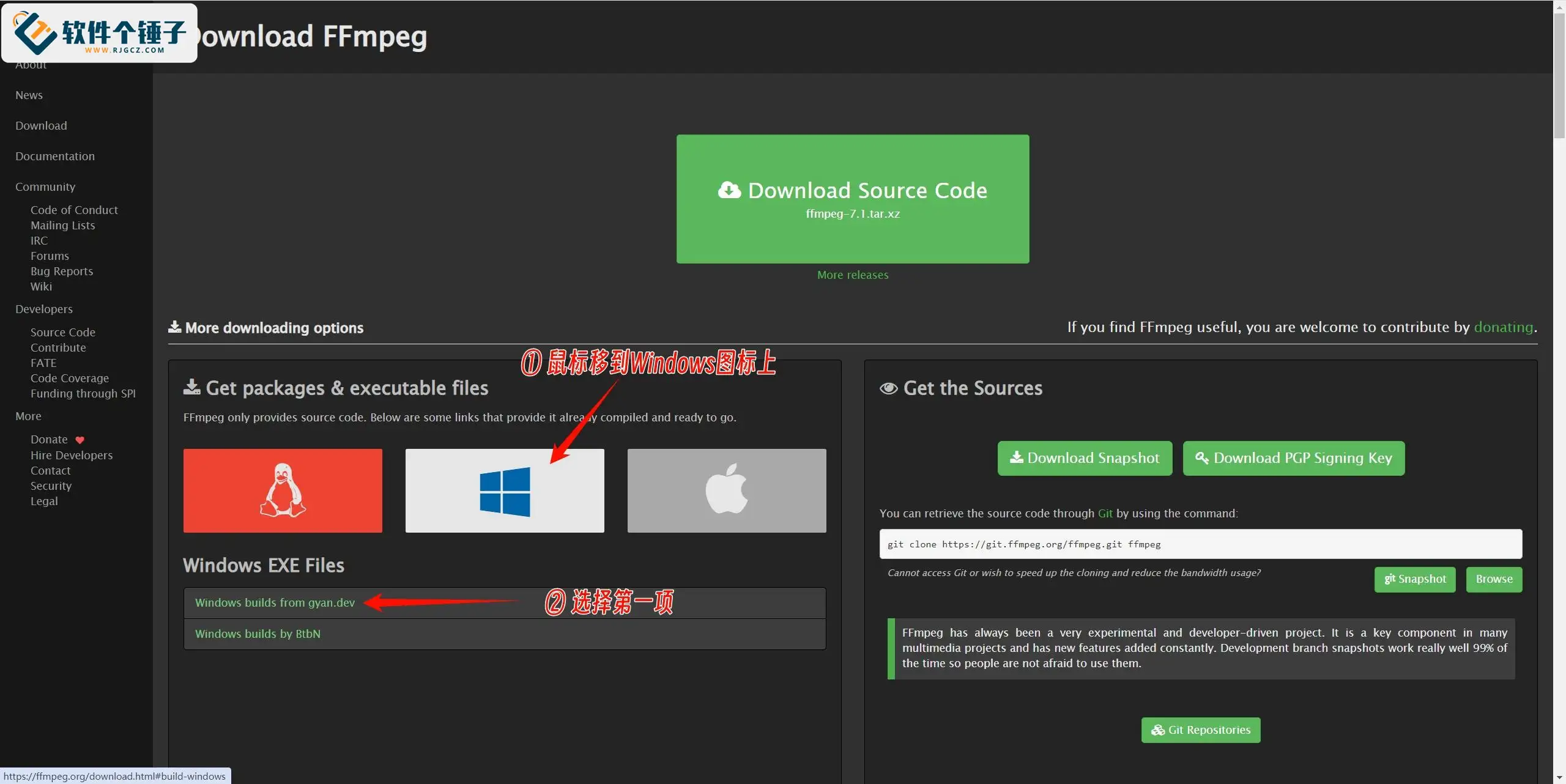
FFmpeg download: https://ffmpeg.org/download.html
① Go to the URL below, hover over the Windows icon, and select the first item below.

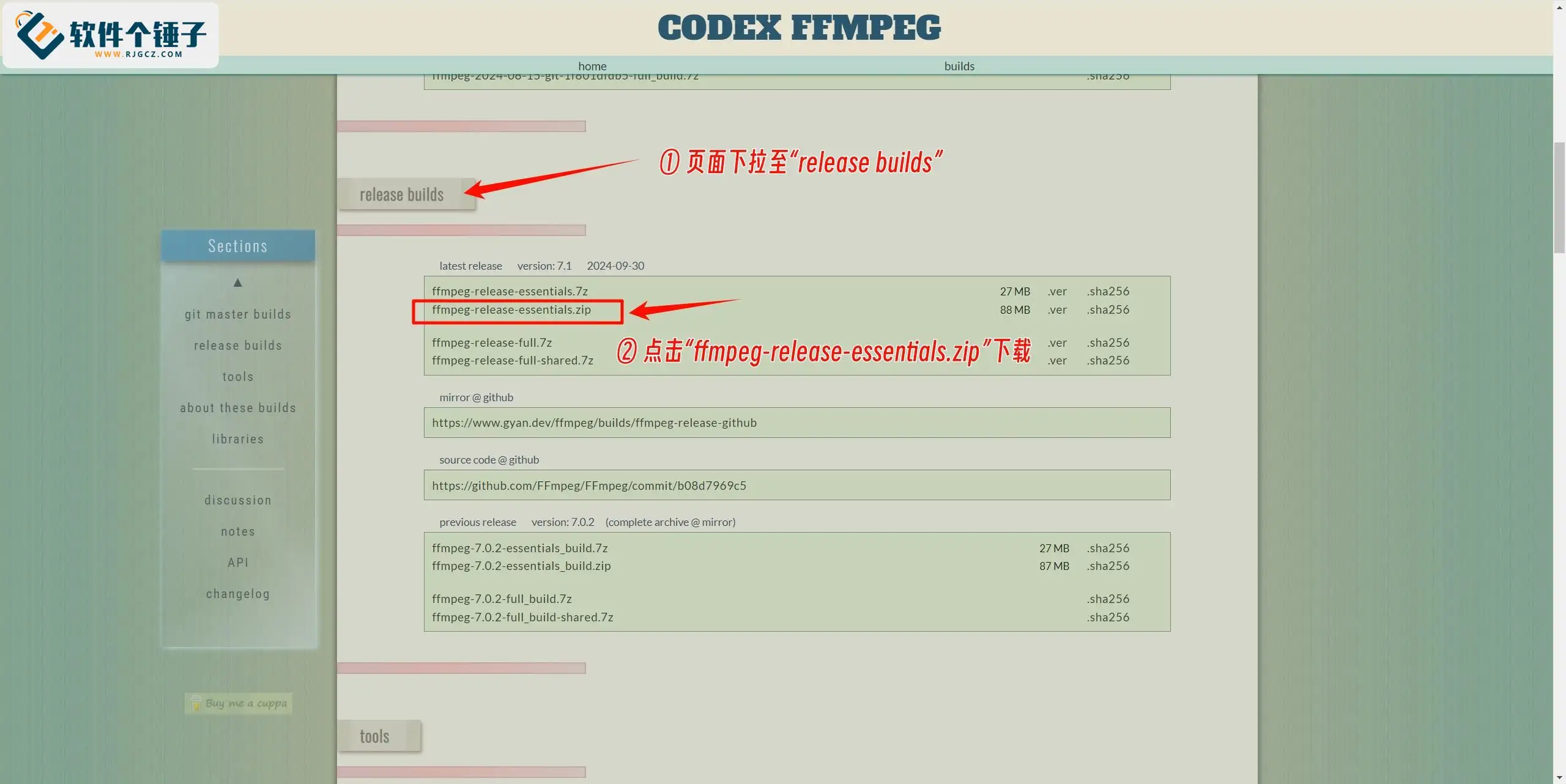
② On the page that opens, scroll down to "release builds" and choose "ffmpeg-release-essentials.zip" to download.

2. Install FFmpeg
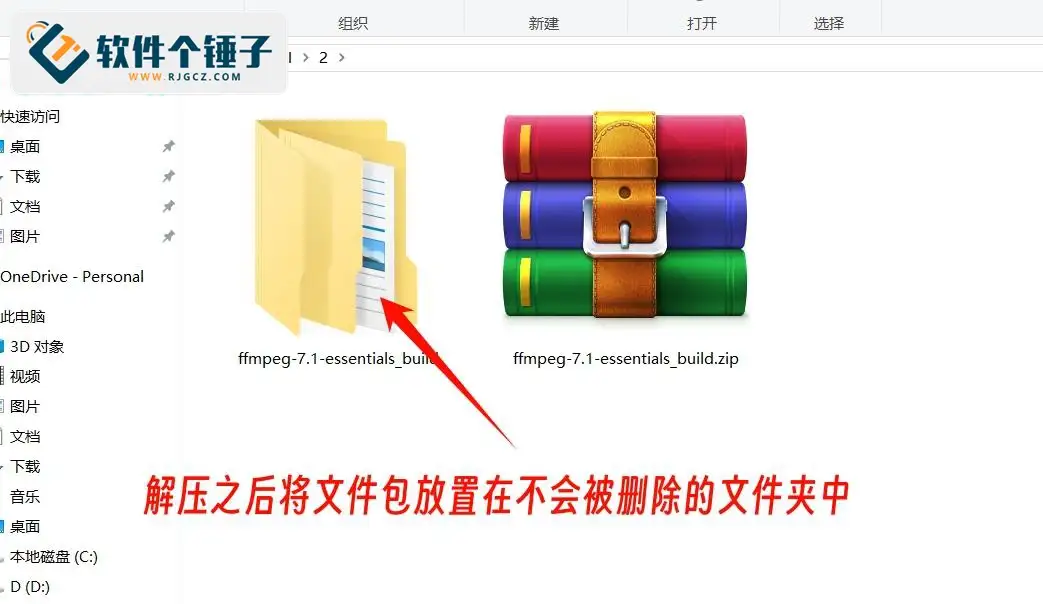
③ Unzip the downloaded archive and put it in a folder that won't be deleted (be sure to put it somewhere it won't be accidentally deleted; if deleted later, it stops working).

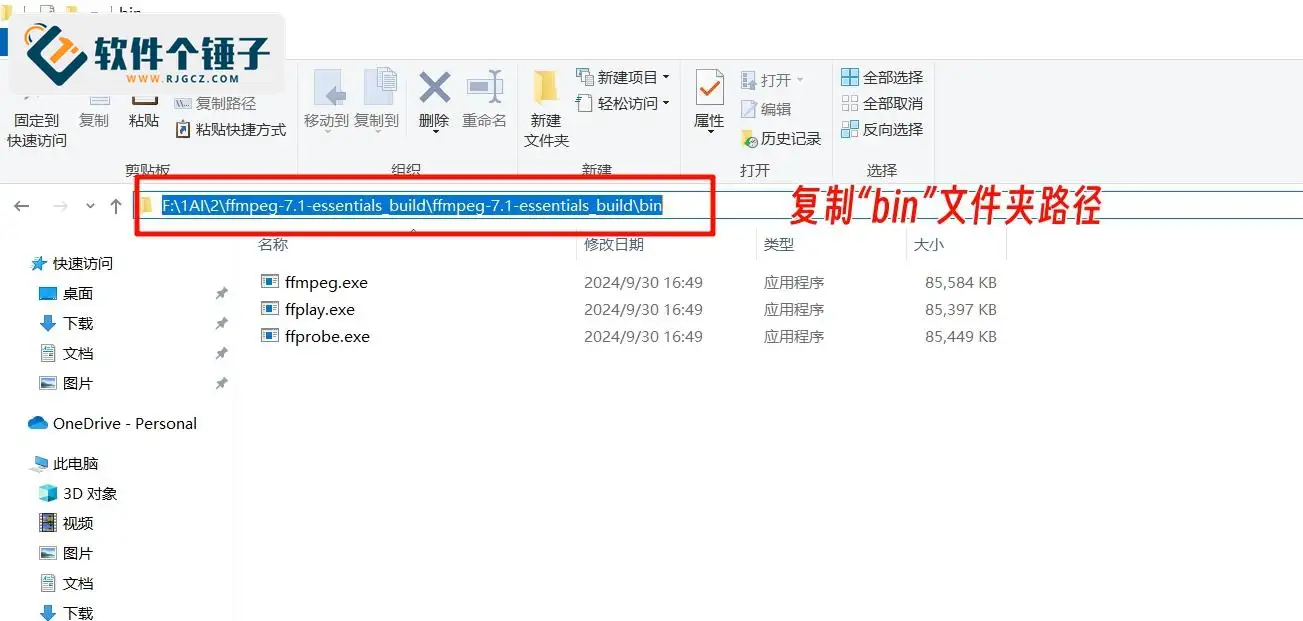
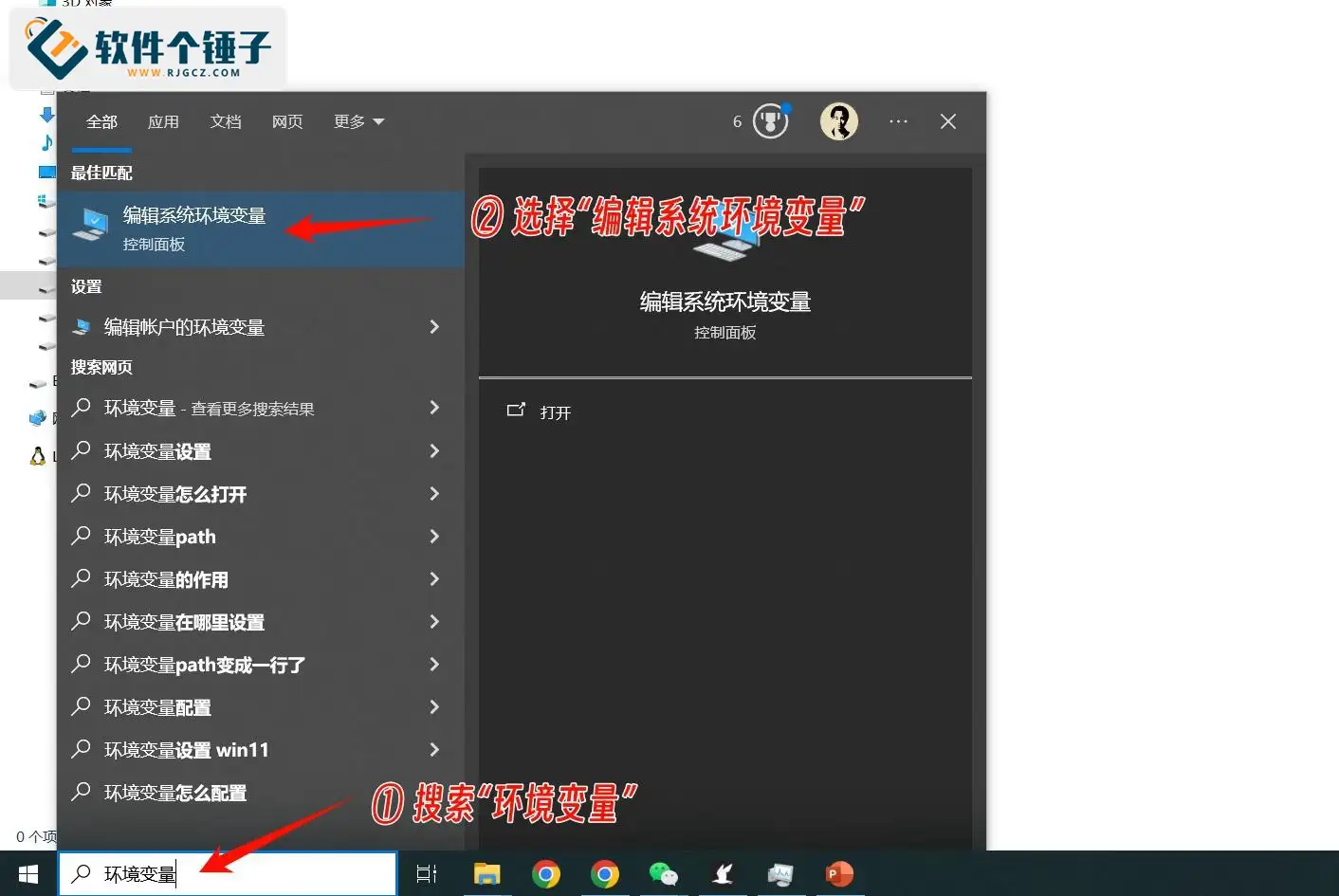
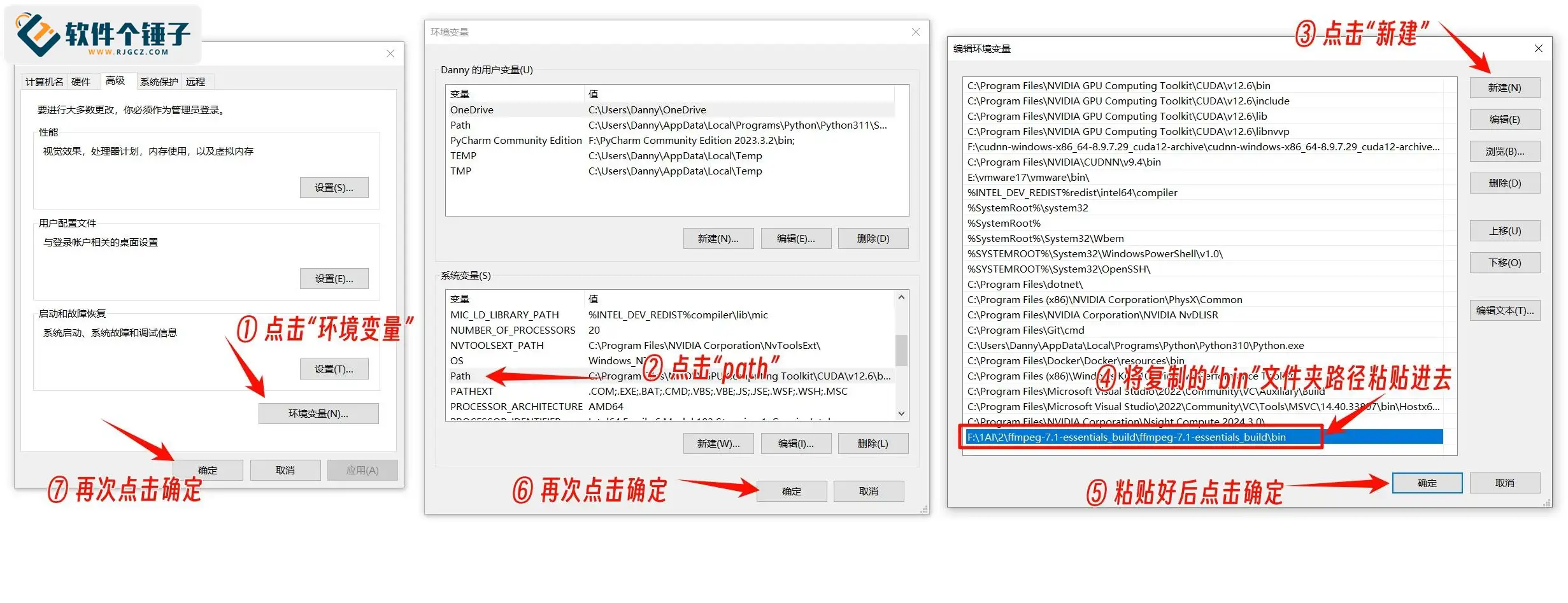
④ Then open the "bin" folder inside the package, copy the folder path, add it to environment variables, and restart the computer.



3. Verify FFmpeg installed successfully
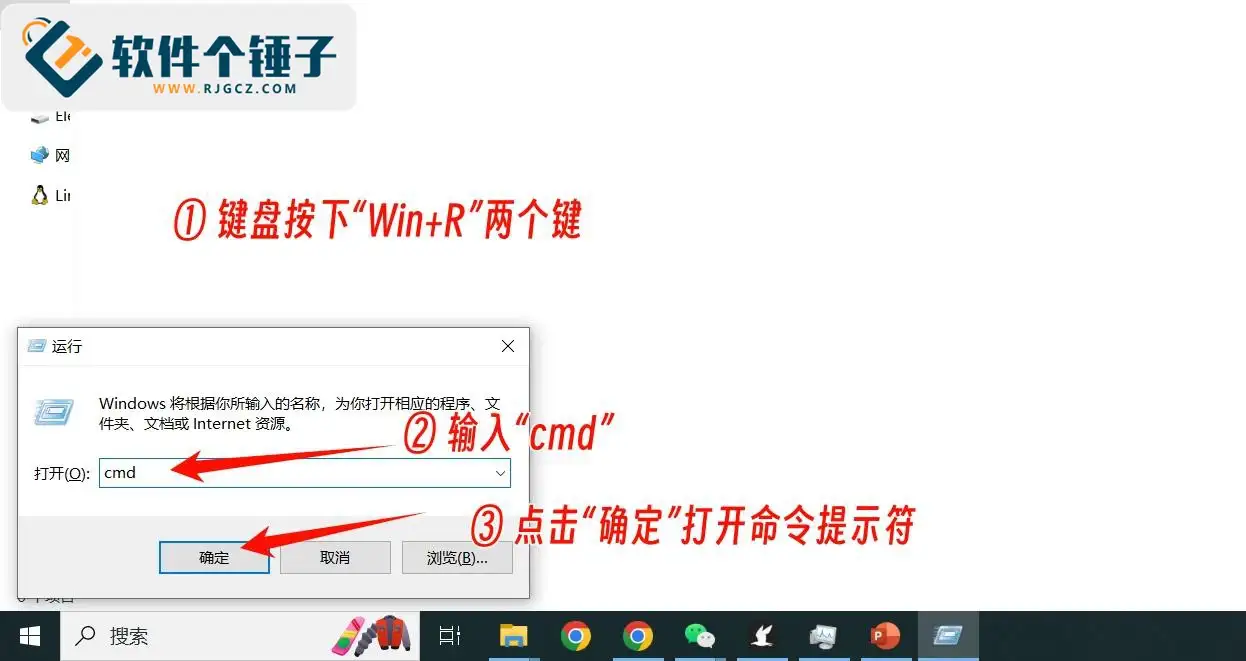
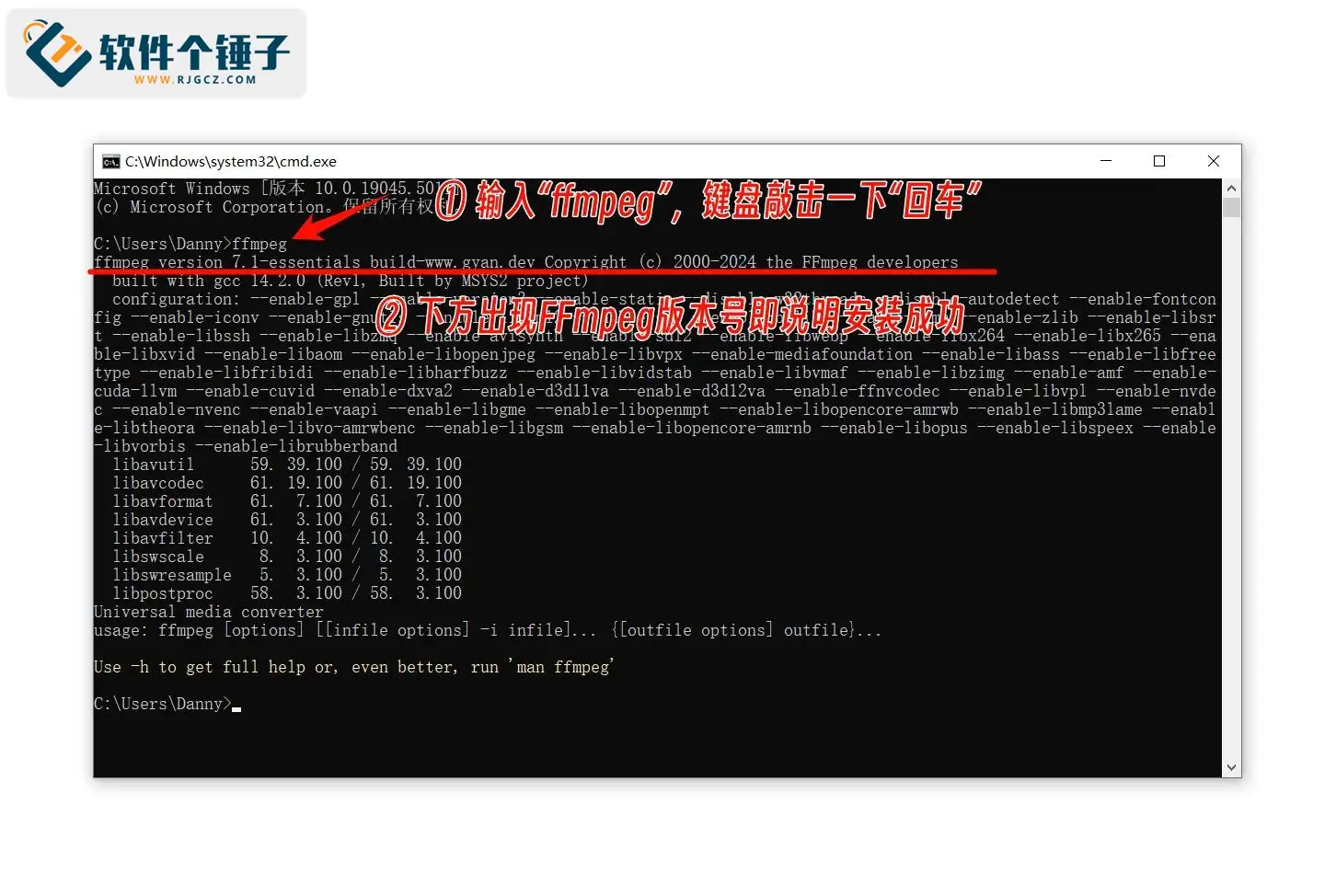
① After rebooting, hold "Win" and press "R"; in the Run box type "cmd" and click OK to open the command prompt (a black code window).

② In the command prompt type "ffmpeg" and press Enter; if version info appears, FFmpeg installed successfully.

Detailed illustrated CUDA install tutorial
Detailed illustrated cuDNN install tutorial
Related Courses
Super local toolbox! Built-in screen recording, audio/video cutting & merging, video compression & extraction, forever free - Kedou Video Converter

100% perfect free tool! One-stop multi-function PDF software: PDF convert, compress, edit etc., minimal, no ads, so nice - JOPDF

Open-Source Desktop Remote Tool, Beats Paid Versions! Free for Personal and Commercial Use Unlimited, Cross-Platform, HopToDesk Remote Control

Latest K-12 Textbook Downloader: Whole-Grade Resource Download, Courseware, Video, Audio in One Click

HuyanBao: free blue-light eye-care app with pet break reminders
Windows Can Have a Desktop Dynamic Island Too! A Modern System Control Center — Give Your PC a Black Notch, PyIsland

3D Simulated Comic Drama Production: Seedance2.0 Full-Process Practical Course - From Zero to One High-Quality Comic Drama Creation

Win/Mac Dual Support! Latest Permanent Lifetime Version, Supports Old Photo Restoration, Image Sharpening and Lossless Upscaling Tool, Aiarty Image Enhancer

Online Video Course: Github Open-Source Bilibili Video Download Tool! Supports 8K and Dolby Vision Bilibili Video Batch Download Tool, Easy to Use Bilidown