-
Solo Business Courses
-
 Others
-
Overseas Tutorials
-
Photography & Editing
-
Community & Private Domain
-
Self-Media Writing & Copywriting
-
Side Income Projects
-
E-commerce
-
Short Video & Live Streaming
-
Artificial Intelligence (AI)
-
Software & Tools
-
Operating Systems
-
Plugins & Scripts
-
MacOS Software
-
Android Software
-
Windows Software
UI/UX Axure RP Team v11.0.0.4122 Beta
-
Game Gold-Farming Money-Making Plan: Earn 1k+ Daily, a Stable 3-Year Project Anyone Can Do in Spare Time [Revealed]
Study material — included with membership Get Membership -
Hot-game fully-automated earning: 500+ a day, no experience, simple operation - the steadiest long-term game-earning side hustle (revealed)
Study material — included with membership Get Membership -
FlyingMouse earns merit this time! Don't panic at Windows format problems — the open-source FlyingMouse format conversion tool helps, a popular GitHub gem
Study material — included with membership Get Membership -
Douyin Product-Selling Coaching Bootcamp: No On-Camera Appearance Needed, Newbies Can Produce Selling Short Videos by Following the Steps
Study material — included with membership Get Membership -
First-release game gold-farming money plan: 1K+ a day, ordinary people in spare time
Study material — included with membership Get Membership






-
FlyingMouse earns merit this time! Don't panic at Windows format problems — the open-source FlyingMouse format conversion tool helps, a popular GitHub gem
Study material — included with membership Get Membership -
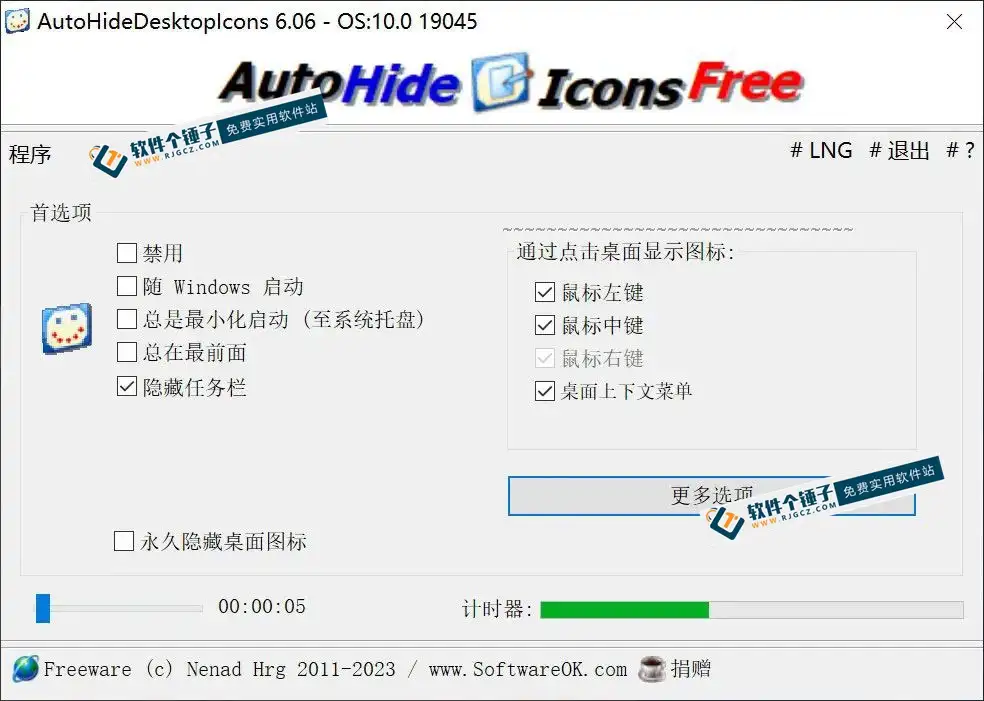
LuDaShi v6.1024.4105.1121 Slim Single File
Study material — included with membership Get Membership -
2D Cartoon Animation Software Moho Pro v14.3
Study material — included with membership Get Membership -
Video Editor Aiseesoft Filmai v1.0.18
Study material — included with membership Get Membership -
To-Do Microsoft To Do v2.147 Free
Study material — included with membership Get Membership -
PR/AE/DaVinci/FCPX video Plugin Nobe OmniScope Win1.11.15 / Mac1.10.138
Study material — included with membership Get Membership


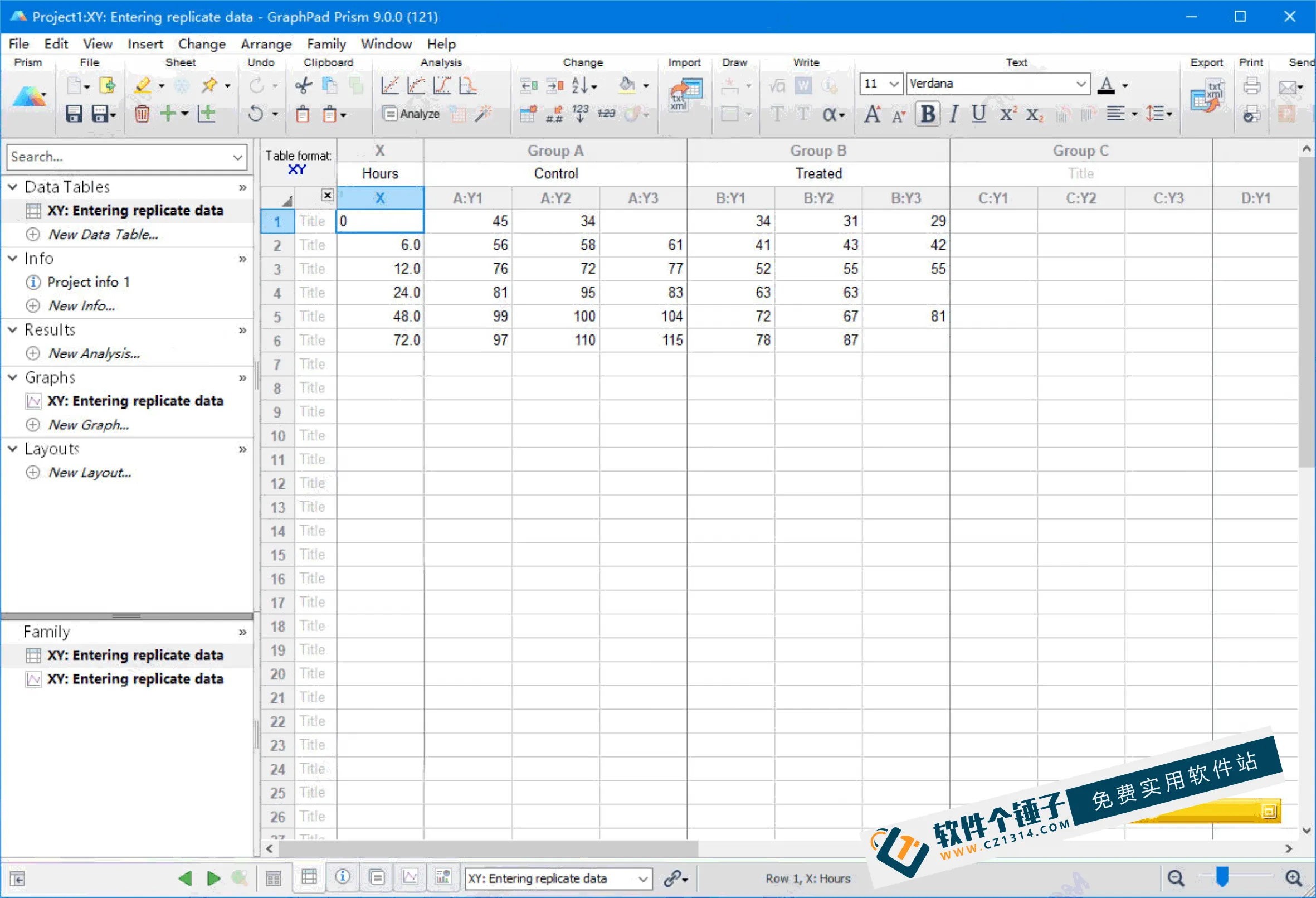
Axure RP is a professional interactive prototyping software that enables experts responsible for defining requirements and specifications, and designing features and interfaces, to quickly create wireframes, flowcharts, prototypes, and specification documents for application software or websites. As a professional prototyping tool, it can quickly and efficiently create prototypes while supporting multi-person collaborative design and version control management. It helps product managers quickly design a complete product prototype, combining annotations, descriptions, flowcharts, and wireframes to fully communicate the product to UI designers and other design personnel. As an office automation aid, Axure RP Pro is better suited for creating web prototypes.
\
Core Features
\- \
- Navigation panel: before drawing wireframes or flowcharts, you should first consider the management interface framework and decide the content and hierarchy of information. \
- Add/delete/rename pages: click "Add subpage" on panel toolbar to add pages, click "Delete page" to delete. Right-click and choose "Rename page" to rename. \
- Page organization: In the page navigation panel, you can move information pages up and down, and reorganize the page hierarchy by dragging pages or clicking the sort button on the toolbar. Open a page for design; in the page navigation panel, double-click a page to open the page data in the wireframe panel for wireframe design. \
- Controls: Controls are UI elements for wireframing. The control panel contains common controls such as buttons, images, text boxes, etc. \
- Add controls: Drag controls from the control panel to the wireframe panel to add controls. Controls can be copied from one wireframe and pasted into another. \
- Operate controls: After adding controls, click a control in the wireframe, then you can drag and move it and change its size. You can also select, move, and resize multiple controls at once. \
- Annotations: You can add annotations to controls to explain their function. \
- Add annotations: You can select some controls in the wireframe and edit values in the "Annotations & Interactions" panel fields to annotate them. The tag data field at the top of the panel model adds a network identifier to the control. \
- Footnote: After adding an annotation to a control, a yellow box called a footnote appears in the top-right corner of the control. \
- Page notes: Page notes can describe and explain a page. \
- Add page notes: Add page notes below the charts. \
- Manage page notes: By customizing annotations on pages, you can provide different annotations for different people, meeting various needs. For example, add "Test Case," "Instructions," and other notes to pages in the same category. \
How to Use
\For Enterprise, switch to 9.0.0.3744:
\- \
- Install the software and close it. \
- Copy the Chinese language pack to C:\\Program Files (x86)\\Axure\\Axure RP 11. \
- Open the software, click Share-Activation. \
Related Courses
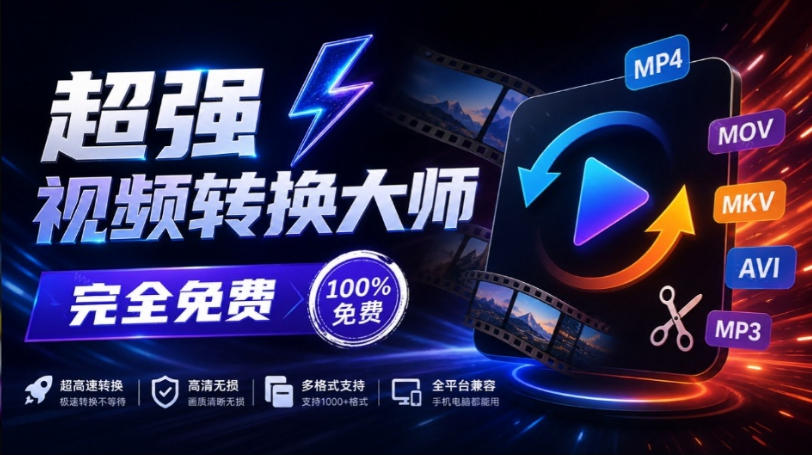
Super local toolbox! Built-in screen recording, audio/video cutting & merging, video compression & extraction, forever free - Kedou Video Converter

100% perfect free tool! One-stop multi-function PDF software: PDF convert, compress, edit etc., minimal, no ads, so nice - JOPDF

Open-Source Desktop Remote Tool, Beats Paid Versions! Free for Personal and Commercial Use Unlimited, Cross-Platform, HopToDesk Remote Control

Latest K-12 Textbook Downloader: Whole-Grade Resource Download, Courseware, Video, Audio in One Click

HuyanBao: free blue-light eye-care app with pet break reminders
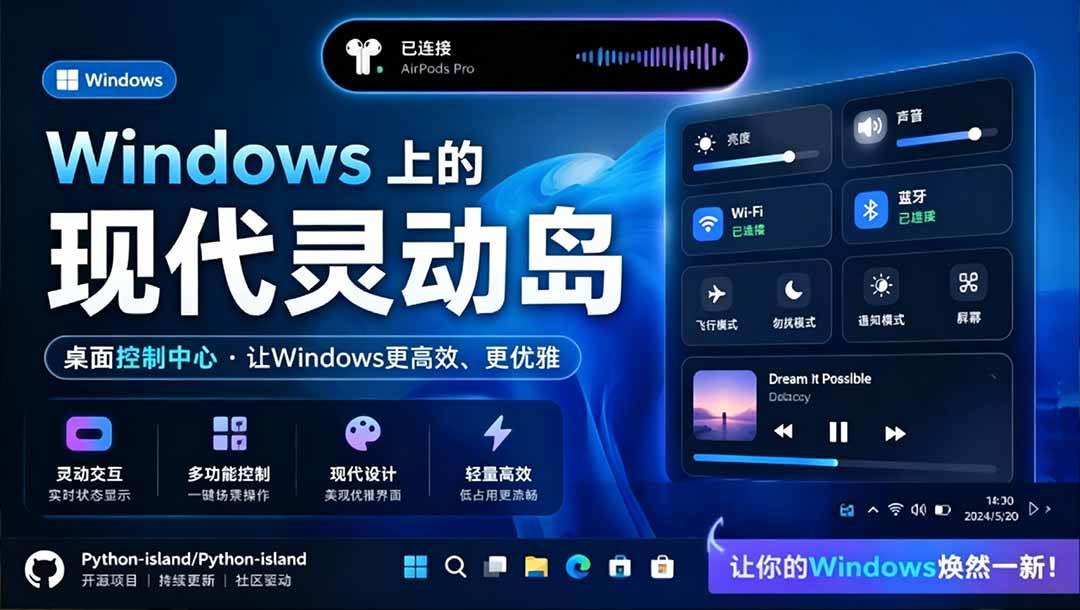
Windows Can Have a Desktop Dynamic Island Too! A Modern System Control Center — Give Your PC a Black Notch, PyIsland

3D Simulated Comic Drama Production: Seedance2.0 Full-Process Practical Course - From Zero to One High-Quality Comic Drama Creation

Win/Mac Dual Support! Latest Permanent Lifetime Version, Supports Old Photo Restoration, Image Sharpening and Lossless Upscaling Tool, Aiarty Image Enhancer

Online Video Course: Github Open-Source Bilibili Video Download Tool! Supports 8K and Dolby Vision Bilibili Video Batch Download Tool, Easy to Use Bilidown