-
Solo Business Courses
-
 Others
-
Overseas Tutorials
-
Photography & Editing
-
Community & Private Domain
-
Self-Media Writing & Copywriting
-
Side Income Projects
-
E-commerce
-
Short Video & Live Streaming
-
Artificial Intelligence (AI)
-
Software & Tools
-
Operating Systems
-
Plugins & Scripts
-
MacOS Software
-
Android Software
-
Windows Software
PushTV v1.2 — Push APKs to TV Wirelessly
-
Game Gold-Farming Money-Making Plan: Earn 1k+ Daily, a Stable 3-Year Project Anyone Can Do in Spare Time [Revealed]
Study material — included with membership Get Membership -
Hot-game fully-automated earning: 500+ a day, no experience, simple operation - the steadiest long-term game-earning side hustle (revealed)
Study material — included with membership Get Membership -
FlyingMouse earns merit this time! Don't panic at Windows format problems — the open-source FlyingMouse format conversion tool helps, a popular GitHub gem
Study material — included with membership Get Membership -
Douyin Product-Selling Coaching Bootcamp: No On-Camera Appearance Needed, Newbies Can Produce Selling Short Videos by Following the Steps
Study material — included with membership Get Membership -
First-release game gold-farming money plan: 1K+ a day, ordinary people in spare time
Study material — included with membership Get Membership






-
FlyingMouse earns merit this time! Don't panic at Windows format problems — the open-source FlyingMouse format conversion tool helps, a popular GitHub gem
Study material — included with membership Get Membership -
LuDaShi v6.1024.4105.1121 Slim Single File
Study material — included with membership Get Membership -
2D Cartoon Animation Software Moho Pro v14.3
Study material — included with membership Get Membership -
Video Editor Aiseesoft Filmai v1.0.18
Study material — included with membership Get Membership -
To-Do Microsoft To Do v2.147 Free
Study material — included with membership Get Membership -
PR/AE/DaVinci/FCPX video Plugin Nobe OmniScope Win1.11.15 / Mac1.10.138
Study material — included with membership Get Membership


What Is PushTV?
PushTV is a wireless APK push-and-install manager built for Android TVs and TV boxes. On your local network, you use a phone or computer browser to wirelessly push APK installers to the TV and install them—no USB needed.
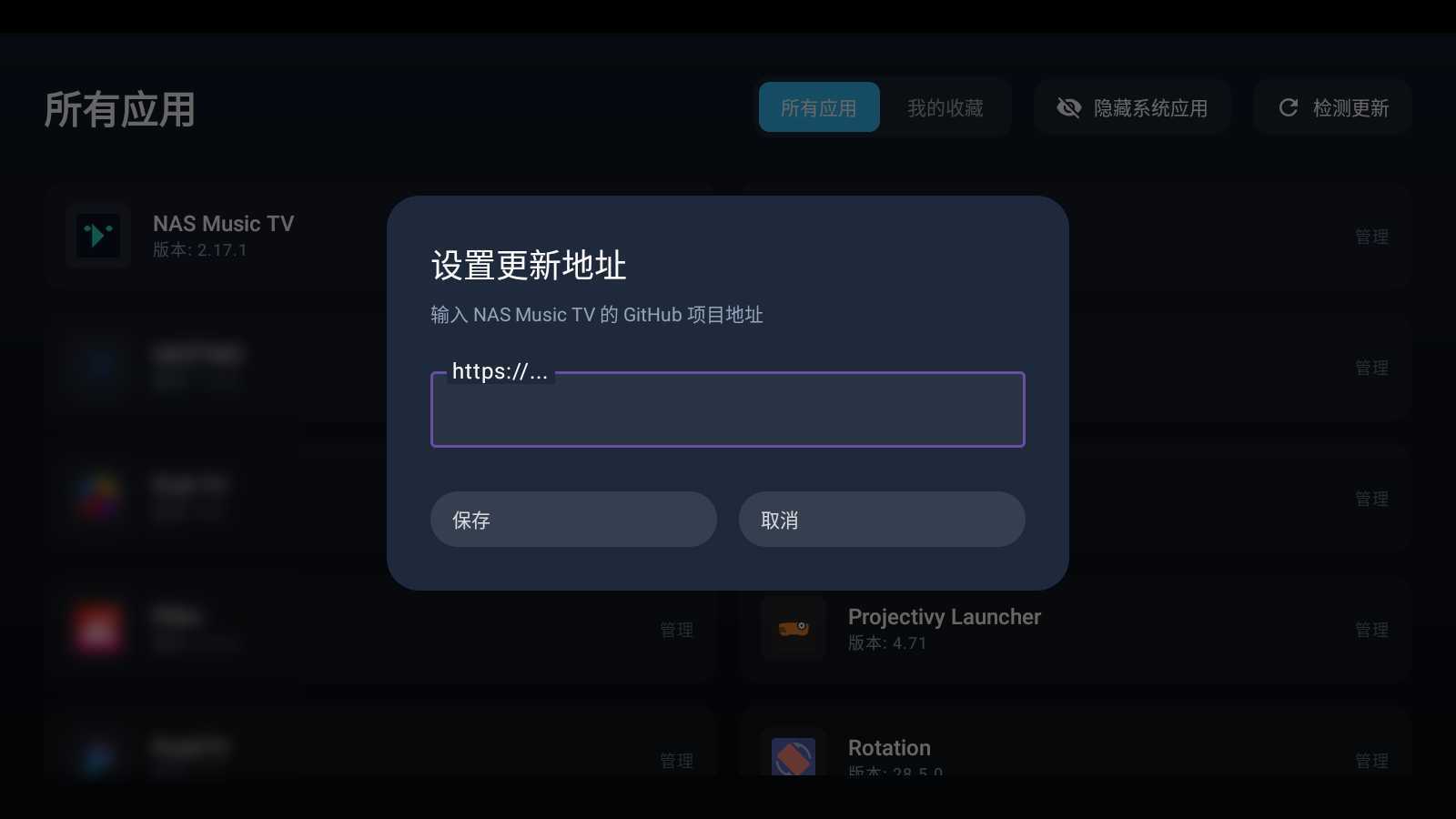
Simply put: a tool that lets your TV box "receive" APKs wirelessly. Scan a QR code or enter a URL on your phone to push apps to the TV; it also manages installed apps and detects updates for open-source software on GitHub.
Use Cases
- Install third-party TV apps on a box—no USB.
- Push APKs from your phone to the TV for quick installs.
- Manage installed TV apps (favorite, open, uninstall).
- Auto-detect and one-click upgrade open-source GitHub TV apps.
- Batch-manage TV apps across multiple devices.
PushTV vs. Other Tools
| Aspect | PushTV | USB Drive | SendAnywhere (cross-platform) |
|---|---|---|---|
| Transfer | LAN direct via web page | Physical USB drive | Cloud relay / direct |
| Install | Auto-install on TV | Manually open file manager | Download, then install manually |
| App management | Built-in app list management | None | None |
| GitHub updates | Auto-detect supported | Not supported | Not supported |
| Network needed | Same Wi-Fi LAN | Not needed | Cloud needs internet |
| Ease of use | ⭐⭐⭐⭐⭐ scan QR and go | ⭐⭐ frequent plug/unplug | ⭐⭐⭐ needs extra app |
Core Features
Example: scan QR on phone → drag APK to upload → TV installs automaticallyExample: open PushTV → note the URL / scan QR → open the page on your phoneExample: open app list → favorite common apps → one-tap uninstall the restExample: pick an app → set GitHub URL → auto-detect → one-click upgradeExample: same Wi-Fi → direct LAN transfer → no internet neededHands-On Experience






Case 1: Push an APK from phone to TV
| Input | Downloaded a new live-TV APK on the phone; need to install it on the living-room Mi TV box. |
| Result | Opened PushTV, scanned the QR on the phone, dragged the APK to upload—transfer finished in about 10 seconds; the TV popped the install prompt and it was done in one tap. |
| Rating | ⭐⭐⭐⭐⭐ No more USB—pushing from the phone is so easy; the whole thing took under 30 seconds. |
| Usefulness | High |
Case 2: Auto-update an open-source GitHub TV app
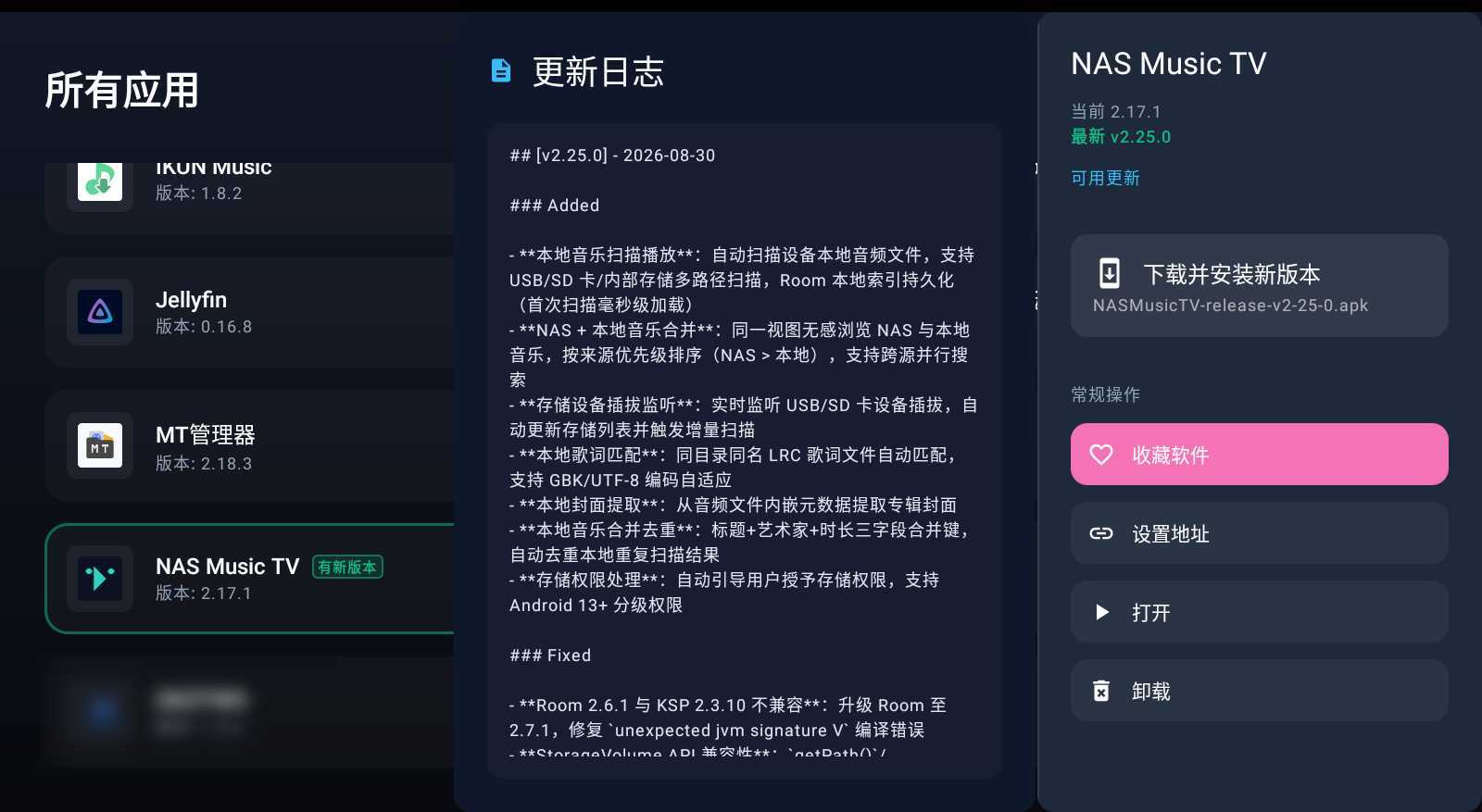
| Input | Installed NAS Music TV, an open-source music app; need to detect the latest GitHub release and upgrade. |
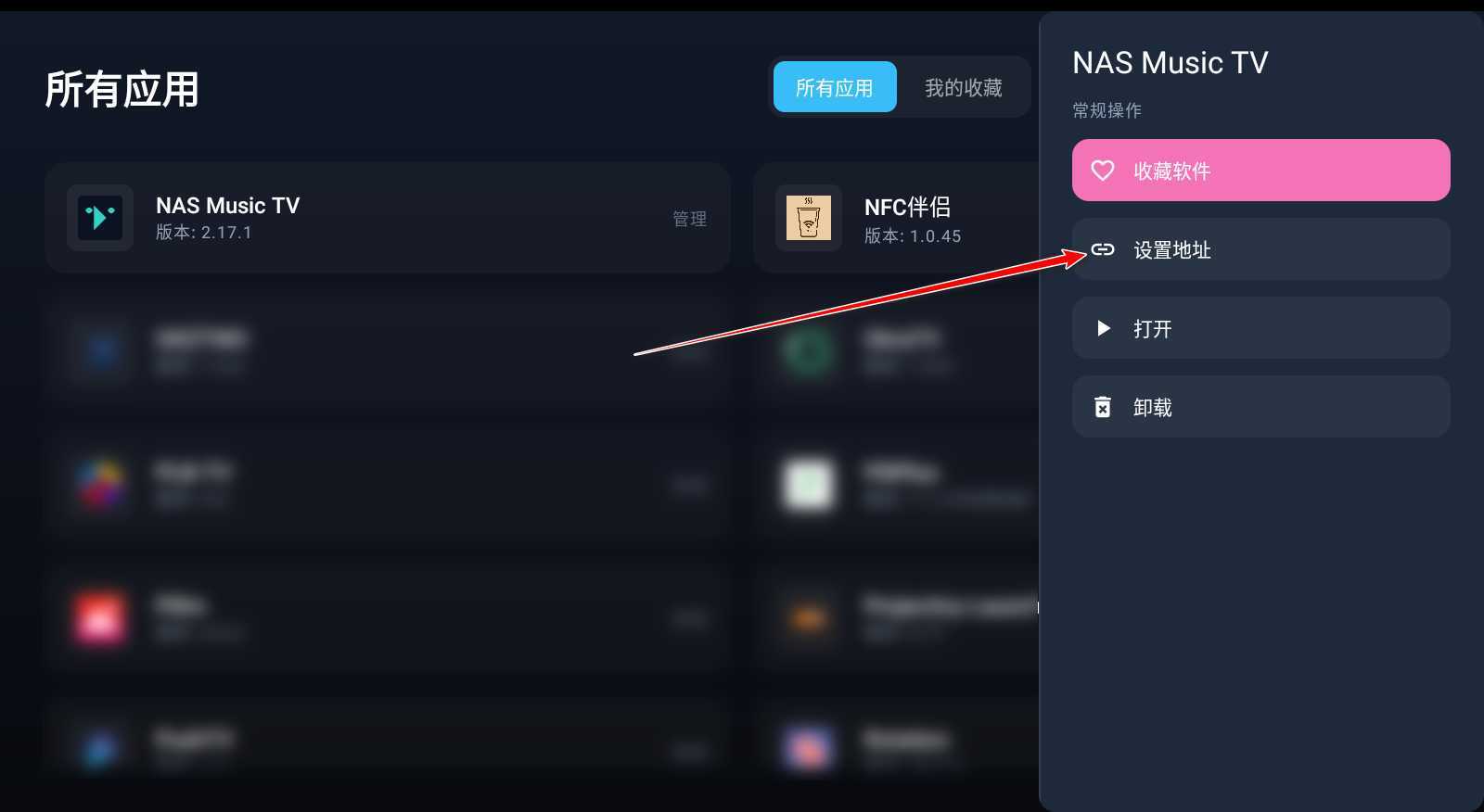
| Result | Selected NAS Music TV in the app list, set its GitHub project URL; PushTV pulled the latest version info, then I clicked "Download & Install" to finish. |
| Rating | ⭐⭐⭐⭐⭐ No more hunting for installers on GitHub—upgrade open-source TV apps right on the TV. |
| Usefulness | High |
Case 3: Batch-manage installed TV apps
| Input | The box has accumulated many rarely-used TV apps; wanted to tidy up—uninstall extras, favorite the ones I use. |
| Result | Opened the app list—all installed apps in view. Favorited 5 common apps and uninstalled 8 rare ones; clear UI, quick actions. |
| Rating | ⭐⭐⭐⭐ Much easier than digging through TV settings to uninstall; list view makes batch management efficient. |
| Usefulness | Fairly high |
How to Use PushTV
Step 1: Install PushTV on your TV
First install PushTV on your TV or box—via USB, or by searching in app stores like Dangbei Market or ShaFa.
Step 2: Open PushTV and get the access URL
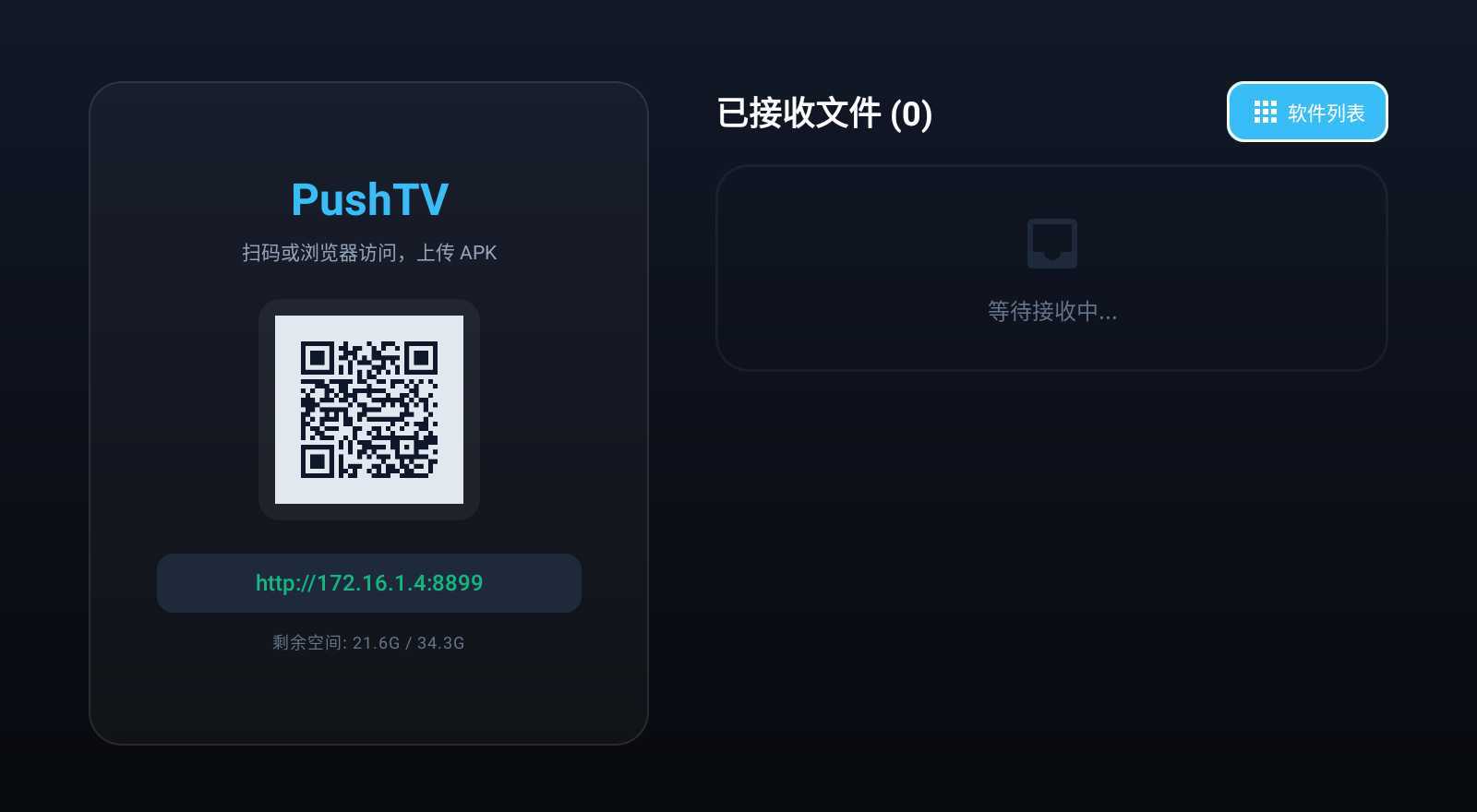
After launching PushTV, the TV shows a QR code and a URL (e.g. http://172.16.1.4:8899). Note the URL or scan the QR with your phone.
Step 3: Scan the QR or open the URL
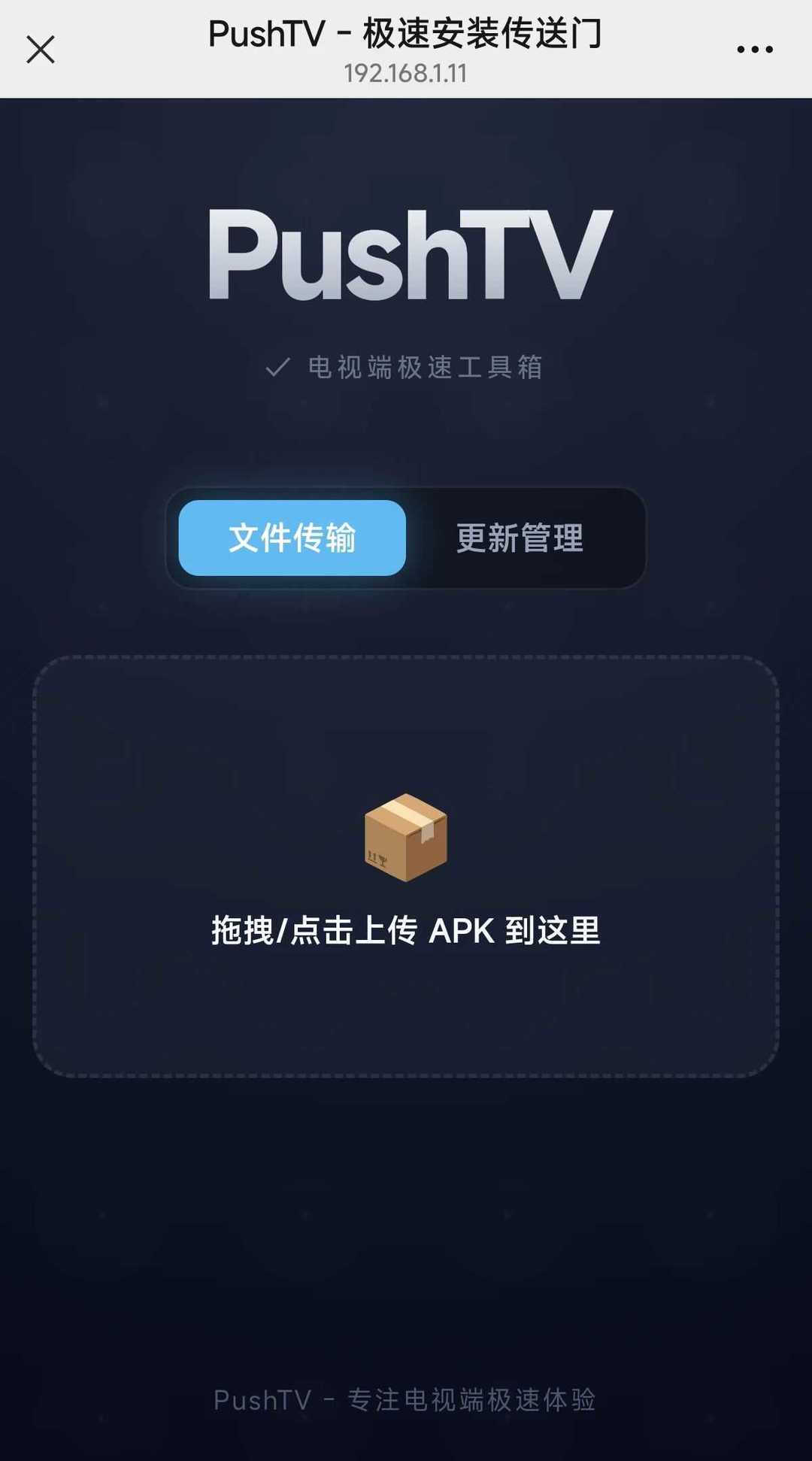
On the same Wi-Fi, scan the TV's QR code with your phone browser or enter the URL to open the PushTV web control panel.
Step 4: Upload the APK
In the web panel, click upload and choose the APK, or drag it into the upload area. The file streams to the TV in real time.
Step 5: Finish install on the TV
Once transfer completes, the TV pops the install confirmation; confirm to finish the APK install, then open and use it.
Bonus: GitHub auto-update
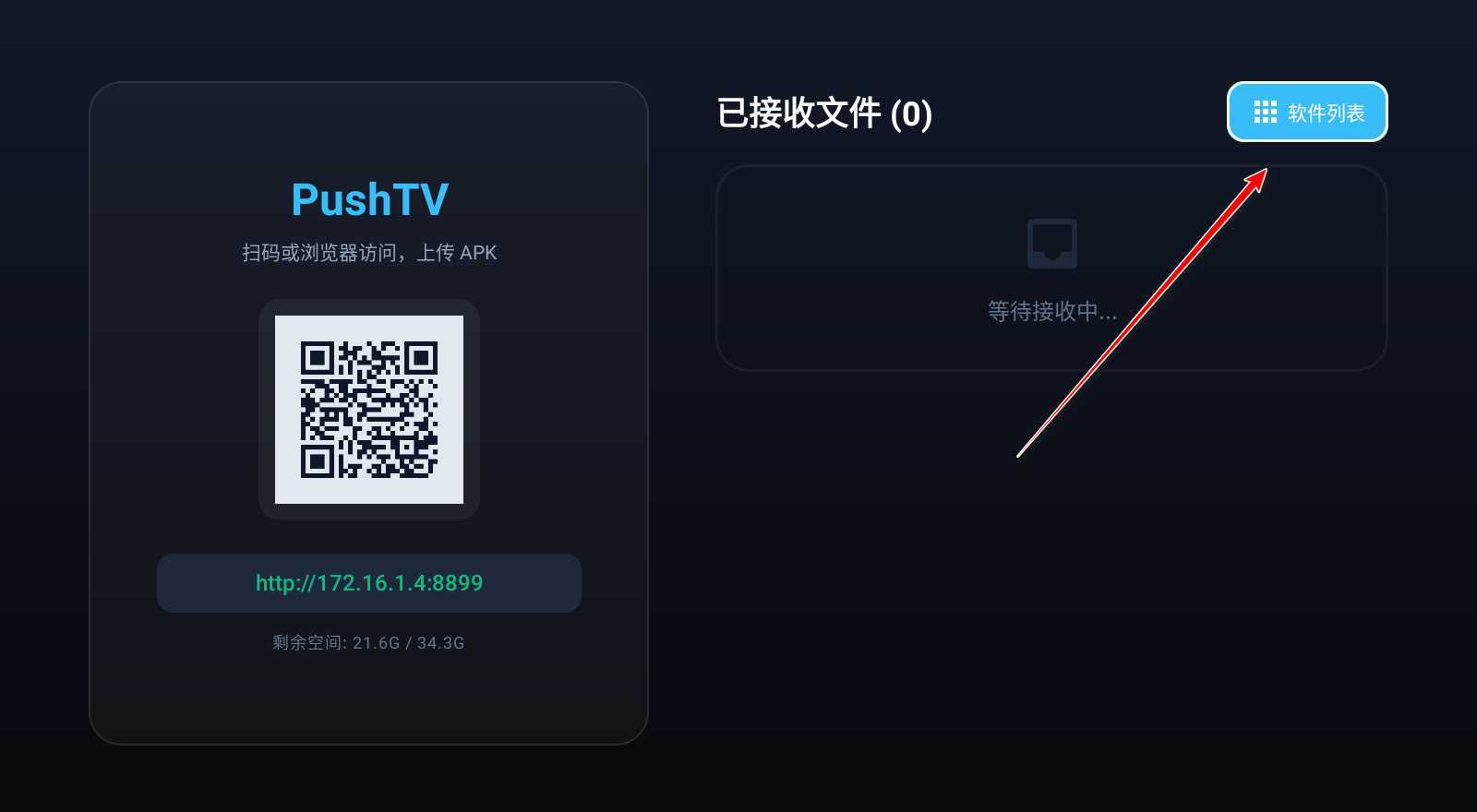
To manage installed apps or set a GitHub update source, tap "App List" in the top-right of the TV screen. Pick an app, tap "Set URL," enter its GitHub project address, and PushTV auto-detects updates.
FAQ
Summary
PushTV is a wireless APK push-and-install manager built for Android TVs and boxes. It ends the USB hassle of installing TV apps—scan a QR on your phone to push APKs, manage installed apps, and detect updates for open-source GitHub software. Great for anyone who regularly tweaks their TV box.
Best for: TV box users, Android TV users, anyone who installs third-party TV apps often, and open-source TV software enthusiasts.
Get started: grab the official PushTV download link from the software resource site. Once installed on your TV, you'll never hunt for a USB again—push from your phone browser in 30 seconds.
Related Courses
Super local toolbox! Built-in screen recording, audio/video cutting & merging, video compression & extraction, forever free - Kedou Video Converter
100% perfect free tool! One-stop multi-function PDF software: PDF convert, compress, edit etc., minimal, no ads, so nice - JOPDF
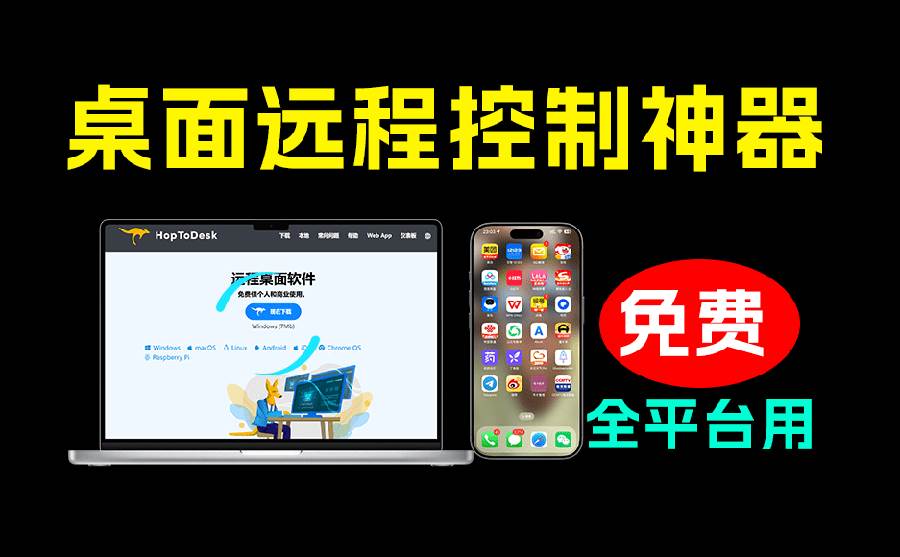
Open-Source Desktop Remote Tool, Beats Paid Versions! Free for Personal and Commercial Use Unlimited, Cross-Platform, HopToDesk Remote Control

Latest K-12 Textbook Downloader: Whole-Grade Resource Download, Courseware, Video, Audio in One Click
HuyanBao: free blue-light eye-care app with pet break reminders
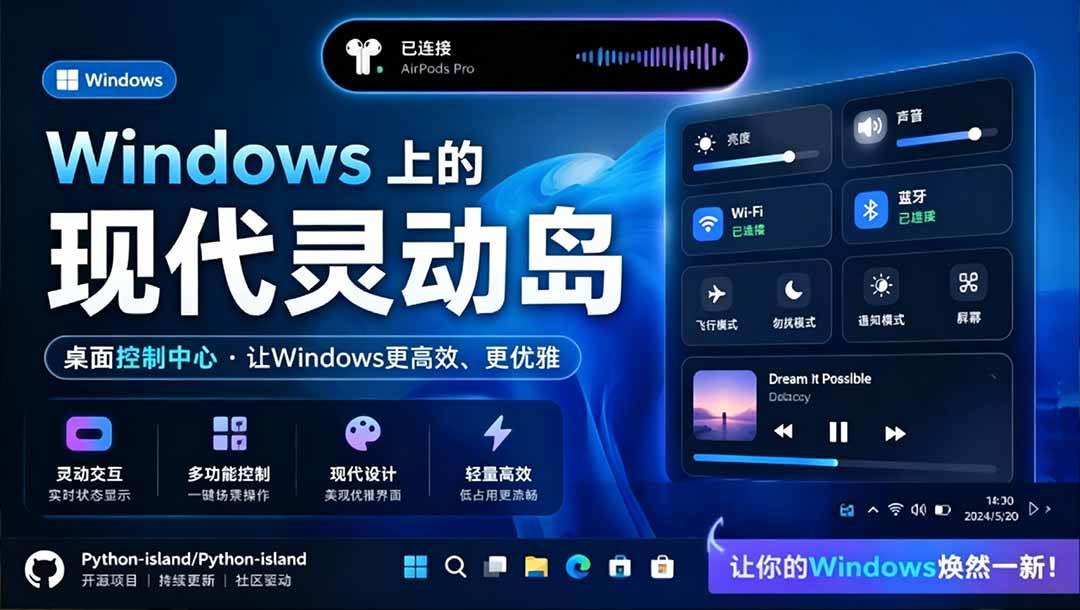
Windows Can Have a Desktop Dynamic Island Too! A Modern System Control Center — Give Your PC a Black Notch, PyIsland

3D Simulated Comic Drama Production: Seedance2.0 Full-Process Practical Course - From Zero to One High-Quality Comic Drama Creation

Win/Mac Dual Support! Latest Permanent Lifetime Version, Supports Old Photo Restoration, Image Sharpening and Lossless Upscaling Tool, Aiarty Image Enhancer
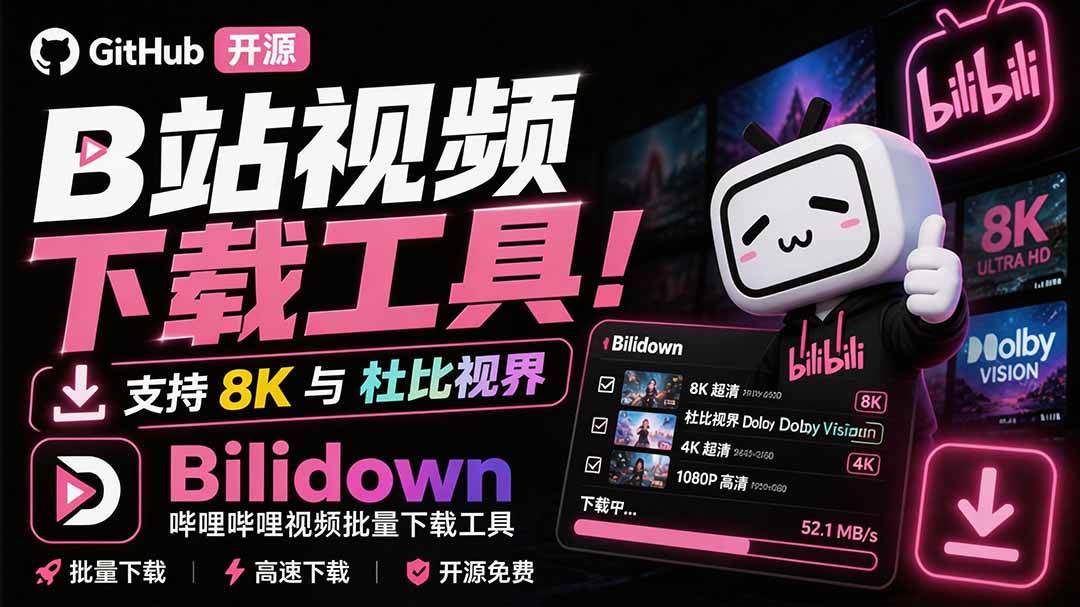
Online Video Course: Github Open-Source Bilibili Video Download Tool! Supports 8K and Dolby Vision Bilibili Video Batch Download Tool, Easy to Use Bilidown