-
Solo Business Courses
-
 Others
-
Overseas Tutorials
-
Photography & Editing
-
Community & Private Domain
-
Self-Media Writing & Copywriting
-
Side Income Projects
-
E-commerce
-
Short Video & Live Streaming
-
Artificial Intelligence (AI)
-
Software & Tools
-
Operating Systems
-
Plugins & Scripts
-
MacOS Software
-
Android Software
-
Windows Software
Scrcpy v2.5 — Control Android from PC
-
Game Gold-Farming Money-Making Plan: Earn 1k+ Daily, a Stable 3-Year Project Anyone Can Do in Spare Time [Revealed]
Study material — included with membership Get Membership -
Hot-game fully-automated earning: 500+ a day, no experience, simple operation - the steadiest long-term game-earning side hustle (revealed)
Study material — included with membership Get Membership -
FlyingMouse earns merit this time! Don't panic at Windows format problems — the open-source FlyingMouse format conversion tool helps, a popular GitHub gem
Study material — included with membership Get Membership -
Douyin Product-Selling Coaching Bootcamp: No On-Camera Appearance Needed, Newbies Can Produce Selling Short Videos by Following the Steps
Study material — included with membership Get Membership -
First-release game gold-farming money plan: 1K+ a day, ordinary people in spare time
Study material — included with membership Get Membership





-
FlyingMouse earns merit this time! Don't panic at Windows format problems — the open-source FlyingMouse format conversion tool helps, a popular GitHub gem
Study material — included with membership Get Membership -
LuDaShi v6.1024.4105.1121 Slim Single File
Study material — included with membership Get Membership -
2D Cartoon Animation Software Moho Pro v14.3
Study material — included with membership Get Membership -
Video Editor Aiseesoft Filmai v1.0.18
Study material — included with membership Get Membership -
To-Do Microsoft To Do v2.147 Free
Study material — included with membership Get Membership -
PR/AE/DaVinci/FCPX video Plugin Nobe OmniScope Win1.11.15 / Mac1.10.138
Study material — included with membership Get Membership


Scrcpy is a free, open-source tool to control your phone from a computer. Over USB (TCP/IP) or Wi-Fi, it mirrors your Android screen to the desktop so you can view and control it—using mouse and keyboard, copy/paste, and even drag-and-drop files onto the phone.
Scrcpy's UI is simple and intuitive, and the phone needs no root or any installed app—it connects via ADB. It calls adb.exe to assist, so you need to add the Scrcpy directory to your system PATH (as shown) to get going.

After setting the PATH, connect your Android device via USB. Remember to enable USB debugging; some devices need extra options. Check the connection in a CMD window with adb usb.
adb usb
restarting in USB mode
Once ready, run scrcpy.exe to start controlling your phone.

Prefer wireless over USB? Wi-Fi works too.
- First make sure the Android device and computer are on the same Wi-Fi, then find the device IP (usually Settings → About phone → Status).
- Enable ADB over TCP/IP: adb tcpip 5555 (5555 is the port).
- Unplug the USB cable.
- Connect over Wi-Fi: adb connect [device-IP]:5555.
- Restart scrcpy.
- The default bitrate is 8 Mbps; wireless may feel slow, so lower it, e.g. to 3 Mbps:
scrcpy -b 3M -m 800
To go back to USB, run adb usb.
Common scrcpy commands
scrcpy -p 27184 — set port
scrcpy –help — show help
scrcpy -b 8M — set bitrate (default 8M)
scrcpy -m 1024 — limit mirror resolution
scrcpy -r file.mp4 — mirror and record
scrcpy -Nr file.mp4 — record only, no mirror
scrcpy -v — show version
Related Courses

Format Factory Comes to Mobile! 100% Completely Free, Audio/Video/Image Format Converter, Free & No-Login (Android)

A Fun Tool! One-Click Cover Faces With Emoji, Local Offline Privacy-Safe, Works on Android Phones — EmojiFace

Video Prompt Reverse Engineering Software (Android App), Quickly Generate, Optimize, and Reverse-Analyze Videos


One Prompt: AI Fully Automatically Builds a Live TV App, Works on PC, Android and TV, Completely Free, Smooth Picture with No Lag

Mobile Video Aggregator — Dashi Xiong Video v4.0.8
Android massive hot free short dramas Hongguo Short Drama v7.4.1.32

Android Mobile Fingerprint Browser v1.1.8 with Hundreds of Built-in Tools

Android Video Re-creation & Repost Master v2.14
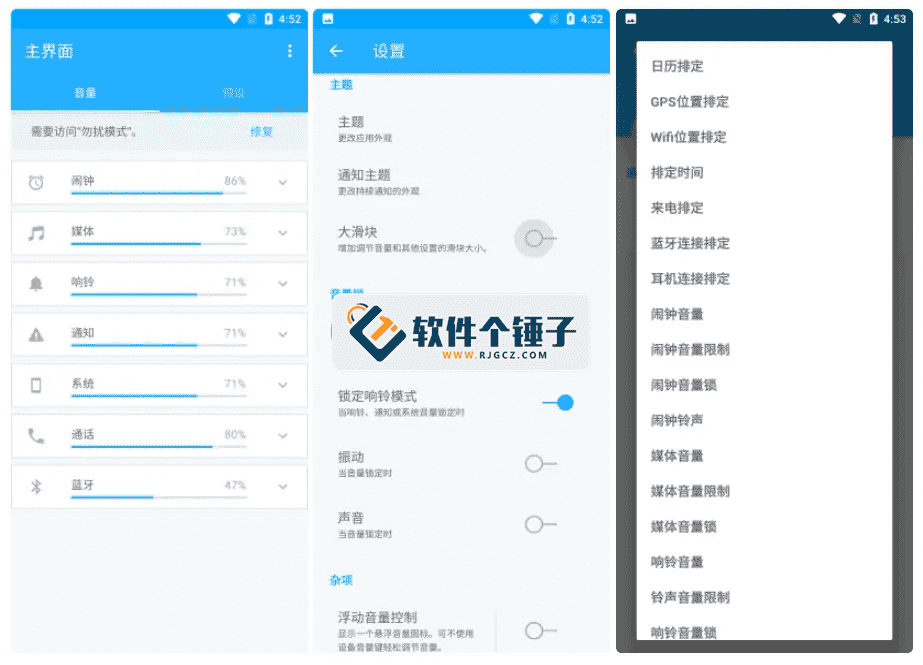
Android Volume Control App Volume Control Pro v6.7.2 [Software Hammer · R4561]