









System crawling again? Want to reinstall but it feels like a hassle?
\Your PC slows down after years of use, so you decide to reinstall — but there’s no USB drive at hand. You dig one out, download a PE tool, make it bootable, copy over the image — an hour or two gone.
\Or you have an ISO image, but every install means rebooting into BIOS to change the boot order — and maybe a blue screen. Want to dual-boot the latest Windows? Risky — mess up the bootloader and you can’t even get into your old system.
\Think of it as “reinstall Windows without a USB drive”
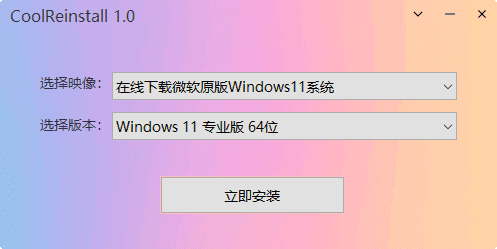
\CoolReinstall’s biggest feature: no USB, no PE — start the install right from your running desktop. Get the image ready, run it, click install, and it handles the rest automatically.
\Three ways it shines
\① No USB drive — one-click reinstall from the desktop
\Whether your system still boots to the desktop or you just want a fresh install, run the tool, point it at your image (ISO, WIM, ESD, GHO…), and it auto-reboots into setup — no USB involved.
\② Download official Microsoft images while you work
\No image at hand? No problem — the tool downloads official Microsoft images directly. Pick the version, click, and it downloads — no hunting for links, no modified-system surprises.
\③ Dual/multi-boot? Boot repair included
\The scariest part of multi-boot is losing your old system’s boot entry. CoolReinstall supports multi-boot installs with an option to rebuild the bootloader, so the boot menu shows both systems. If something does go wrong, it has a built-in boot-repair tool — no need for a separate repair USB.
\Who is it for?
\If you occasionally reinstall Windows but don’t want to learn how to make a PE boot disk; if you’re often without a USB but need a fast reinstall; or if you want to experiment with multi-boot and need the bootloader handled — it’s a great fit. Tiny (the standard build is only a few hundred KB), keep it around for emergencies.
\Bottom line
\\ \If you want to skip making a boot USB and install Windows in one click from your current desktop, give CoolReinstall a try. Multiple image formats, direct downloads of official images, and multi-boot handling — a worry-free installer.