-
Solo Business Courses
-
 Others
-
Overseas Tutorials
-
Photography & Editing
-
Community & Private Domain
-
Self-Media Writing & Copywriting
-
Side Income Projects
-
E-commerce
-
Short Video & Live Streaming
-
Artificial Intelligence (AI)
-
Software & Tools
-
Operating Systems
-
Plugins & Scripts
-
MacOS Software
-
Android Software
-
Windows Software

The Foundry Mari v7.0v2 — 3D Texture Painting
-
Game Gold-Farming Money-Making Plan: Earn 1k+ Daily, a Stable 3-Year Project Anyone Can Do in Spare Time [Revealed]
Study material — included with membership Get Membership -
Hot-game fully-automated earning: 500+ a day, no experience, simple operation - the steadiest long-term game-earning side hustle (revealed)
Study material — included with membership Get Membership -
FlyingMouse earns merit this time! Don't panic at Windows format problems — the open-source FlyingMouse format conversion tool helps, a popular GitHub gem
Study material — included with membership Get Membership -
Douyin Product-Selling Coaching Bootcamp: No On-Camera Appearance Needed, Newbies Can Produce Selling Short Videos by Following the Steps
Study material — included with membership Get Membership -
First-release game gold-farming money plan: 1K+ a day, ordinary people in spare time
Study material — included with membership Get Membership






-
FlyingMouse earns merit this time! Don't panic at Windows format problems — the open-source FlyingMouse format conversion tool helps, a popular GitHub gem
Study material — included with membership Get Membership -
LuDaShi v6.1024.4105.1121 Slim Single File
Study material — included with membership Get Membership -
2D Cartoon Animation Software Moho Pro v14.3
Study material — included with membership Get Membership -
Video Editor Aiseesoft Filmai v1.0.18
Study material — included with membership Get Membership -
To-Do Microsoft To Do v2.147 Free
Study material — included with membership Get Membership -
PR/AE/DaVinci/FCPX video Plugin Nobe OmniScope Win1.11.15 / Mac1.10.138
Study material — included with membership Get Membership


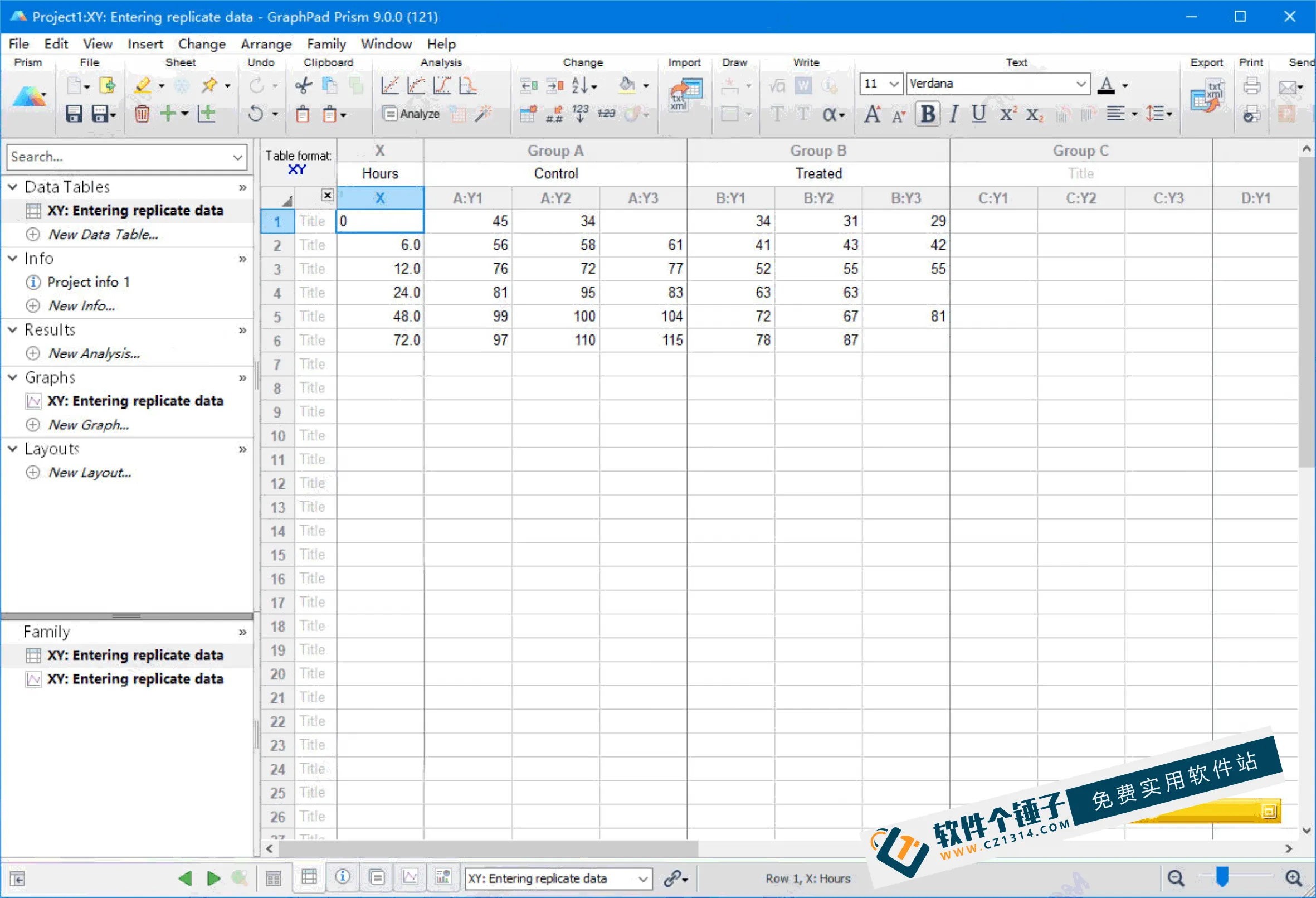
The Foundry Mari is a professional 3D texture-painting app for PC, giving designers a complete, powerful toolset. With new technology and an optimized workflow, it speeds up 3D texture work and helps designers ship creative work faster.
\
Features at a glance
\- \
- Unified workflow: load and work on all textures without switching modes, simplifying model processing. \
- Refreshed UI: improved interface and navigation for more intuitive, efficient work. \
Core features
\- \
- Texture processing: full coverage from color adjustment to complex effects. \
- Full USD support: from traditional texturing to the latest USD pipelines, Mari handles both stably. \
- Upgraded brush system: new brushes add capability and run faster, for a better experience. \
Enhancements
\- \
- Stronger procedural nodes: more powerful procedural nodes and more useful filter nodes, giving artists more freedom. \
- New gradient nodes: five new gradient nodes open up more material and texture design options. \
Design efficiency & creativity
\With The Foundry Mari, designers not only produce polished 3D work quickly, but enjoy unmatched creative freedom and efficiency — a top choice for professionals leveling up their 3D texturing.
\Try The Foundry Mari today and unlock your creative potential.
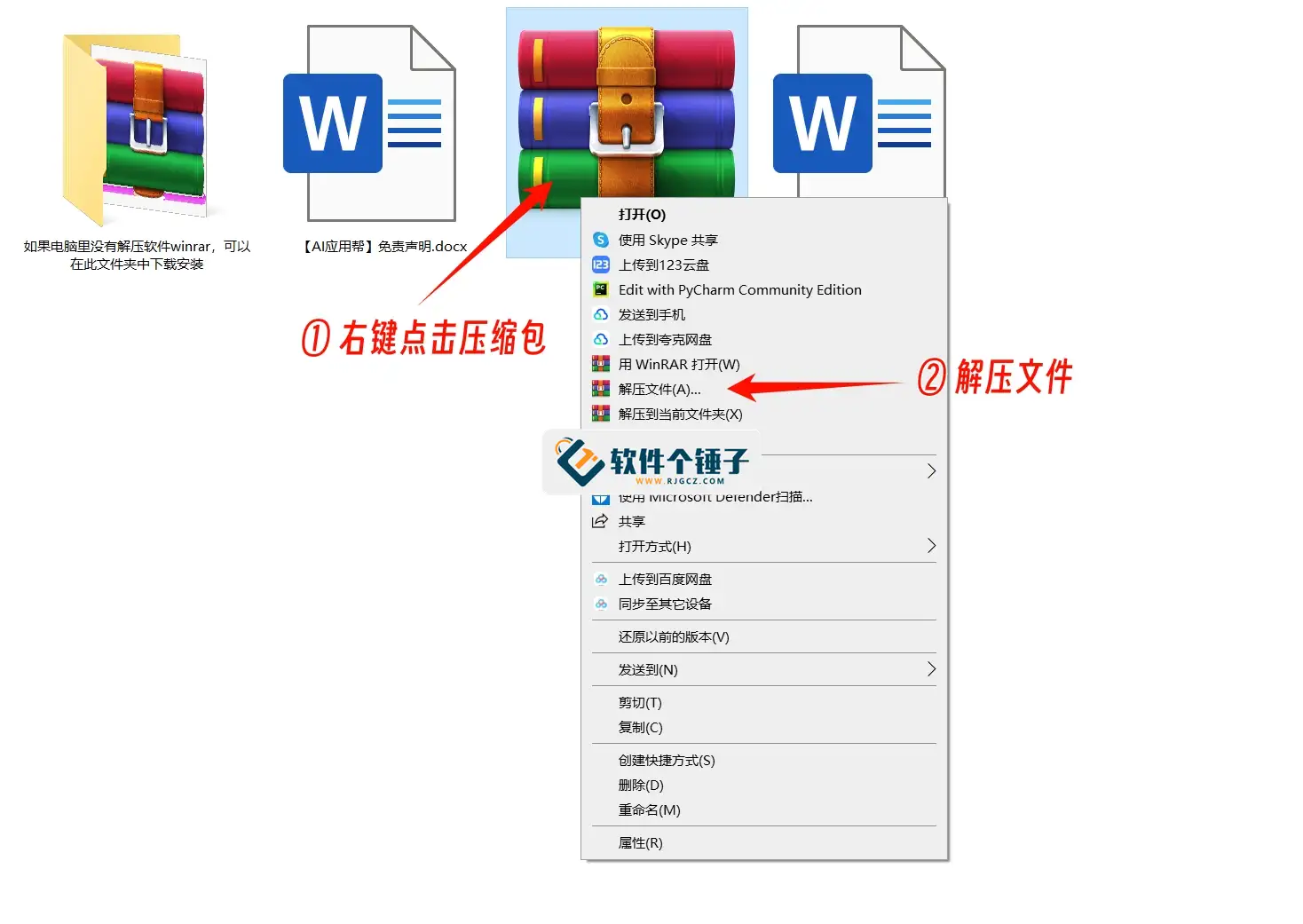
\Install & activate The Foundry Mari
\1. Download and install the software:
\
– Use the link at the end of this article to download The Foundry Mari.
\
– Run the installer and follow the prompts until setup finishes.

2. Install the license manager:
\
– Find the FLT7 license-manager installer in the download and run it — accept the defaults.
3. Open Services:
\
– Press Win+R, enter services.msc and open Services.


4. Replace the license-server file:
\
– Copy rlm.foundry.exe from the download into C:\Program Files\The Foundry\LicensingTools7.1\bin\RLM\, overwriting the existing file.

5. Run license diagnostics:
\
– Launch Foundry License Utility as administrator, pick Diagnostics and click Run Diagnostics. Record the Host name and Host ID shown.
6. Edit and deploy the license file:
\
– Open xf_foundry.lic in Notepad and replace the HOST NAME and MAC ADDRESS fields. HOST NAME = your computer name; MAC ADDRESS = the Host ID from step 5.
\
– If unspecified, the port defaults to 5053.

– Save the edited xf_foundry.lic, then copy it into C:\Program Files\The Foundry\LicensingTools7.1\bin\RLM\ and C:\ProgramData\The Foundry\RLM\.
7. Start the license server:
\
– Back in Foundry License Utility, pick RLM Server and click Start Server. On success the license info appears.

8. Launch the app:
\
– Run The Foundry Mari — it should now run without issues.
Related Courses

WorkBuddy zero-basics hands-on training: even non-programmers can follow the manual steps, learn agents systematically by doing
Higgsfield cinematic animation course: one-stop creation platform, complete animation production-flow teaching

The same dance with 6 outfits switching in order: I turned an outfit-change video into a Skill
An eye-catching domestic Markdown editor: local offline high-performance note tool, free and no login required

Domestic Markdown editor: local offline high-performance knowledge-note tool, free and no login required

WorkBuddy practical blue paper: user manual and practice guide, complete combined image-text edition

Jimeng challenges a 180-second long video: one-click a 3-minute movie? Full production flow shared in detail

Super handy! Douyin video downloader, supports batch download of user works, favorites and likes lists, open-source free Better-douyin-R

Nearly 200K stars on GitHub - Harness now runs by double-click: the Harness full-platform desktop edition

Nearly 200K stars on GitHub - Harness now runs by double-click: the Harness full-platform desktop edition DSH Desktop