Categories
See All >
-
Solo Business Courses
-
 Others
-
Overseas Tutorials
-
Photography & Editing
-
Community & Private Domain
-
Self-Media Writing & Copywriting
-
Side Income Projects
-
E-commerce
-
Short Video & Live Streaming
-
Artificial Intelligence (AI)
-
Software & Tools
-
Operating Systems
-
Plugins & Scripts
-
MacOS Software
-
Android Software
-
Windows Software


Batch Paste Tool v1.0.0 (Formatted Text, Images, Files)
📚Video Course
🕒Last updated: 08/18/2024
👥Entrepreneurs / Self-media creators / Cross-border e-commerce sellers / Side-hustlers
Study material — included with membership
Unlock Course with Membership
🔓
Get this course for reference study with membership
📦
Join membership — study all 16742 courses & software tools as reference
🔄
Courses keep updating — members study new material as it arrives
Share:
Top Selling Courses
-
Game Gold-Farming Money-Making Plan: Earn 1k+ Daily, a Stable 3-Year Project Anyone Can Do in Spare Time [Revealed]
Study material — included with membership Get Membership -
Hot-game fully-automated earning: 500+ a day, no experience, simple operation - the steadiest long-term game-earning side hustle (revealed)
Study material — included with membership Get Membership -
FlyingMouse earns merit this time! Don't panic at Windows format problems — the open-source FlyingMouse format conversion tool helps, a popular GitHub gem
Study material — included with membership Get Membership -
Douyin Product-Selling Coaching Bootcamp: No On-Camera Appearance Needed, Newbies Can Produce Selling Short Videos by Following the Steps
Study material — included with membership Get Membership -
First-release game gold-farming money plan: 1K+ a day, ordinary people in spare time
Study material — included with membership Get Membership






Top Selling Software Tools
-
FlyingMouse earns merit this time! Don't panic at Windows format problems — the open-source FlyingMouse format conversion tool helps, a popular GitHub gem
Study material — included with membership Get Membership -
LuDaShi v6.1024.4105.1121 Slim Single File
Study material — included with membership Get Membership -
2D Cartoon Animation Software Moho Pro v14.3
Study material — included with membership Get Membership -
Video Editor Aiseesoft Filmai v1.0.18
Study material — included with membership Get Membership -
To-Do Microsoft To Do v2.147 Free
Study material — included with membership Get Membership -
PR/AE/DaVinci/FCPX video Plugin Nobe OmniScope Win1.11.15 / Mac1.10.138
Study material — included with membership Get Membership


This tool is built to speed up data pasting. It quickly pastes pre-organized data into a target app in a preset order. After each paste, it auto-jumps to the next item and copies it to the clipboard. You just paste, saving the frequent app-switching and repetitive Ctrl + C and Ctrl + V operations, making work more efficient.


Supported data formats
\ \- \
\
- Plain text:Supports batch adding and editing, and can split data according to rules. \ \
- Formatted files:Supports HTML and rich text format files. \ \
- Images:Supports pasting from clipboard or local files, and is compatible with transparent images. \ \
- File operations:Supports copy and cut operations for files and directories. \ \
Main features
\ \- \
\
- Clipboard content capture:You can directly use clipboard content as paste data, and supports enabling clipboard monitoring mode to continuously capture multiple sets of data and filter them. \ \
- Flexible data adding:Supports batch adding of plain text data, splitting and editing according to rules, and image files can be replaced at any time. \ \
- File operation support:Manually add or modify copy and cut operations for files and directories. \ \
- Data sorting and preview:Added data can be freely sorted, and a preview panel is provided to view the content. \ \
- Repeat and loop settings:Paste data can be set to any number of repeats and the number of loops for the entire group of data. \ \
- Transparent data window:Provides a semi-transparent window to conveniently view the current clipboard data at any time. \ \
- Trigger hotkeys:Supports using the system default
Ctrl + Vhotkey, and you can also set other keys to trigger it. \
\
- Mouse trigger:Supports triggering paste commands via mouse, providing more operational flexibility (mouse trigger actions can be specified). \ \
- Simulated keyboard operations:After pasting data, simulated keyboard operations can be performed, and custom simulated keys are supported. \ \
- Task save feature:Paste tasks can be saved as files, making it convenient to perform batch paste operations at any time. \ \
Interface description
\ \To simplify interface settings, many features have been integrated into each panel. The default settings can meet basic needs, and advanced users can open the panels for detailed settings.
\ \Workflow
\ \- \
\
- Add data:Choose to capture clipboard content or manually add data as needed. \ \
- Set paste method:Decide whether to use a key or mouse to trigger pasting. \ \
- Execute paste:Switch to the target app, press the hotkey to paste data where needed, and repeat until done. \ \
\ \ \ \
Related Courses
Study material — included with membership
Get Membership
Super local toolbox! Built-in screen recording, audio/video cutting & merging, video compression & extraction, forever free - Kedou Video Converter
Study material — included with membership
Get Membership
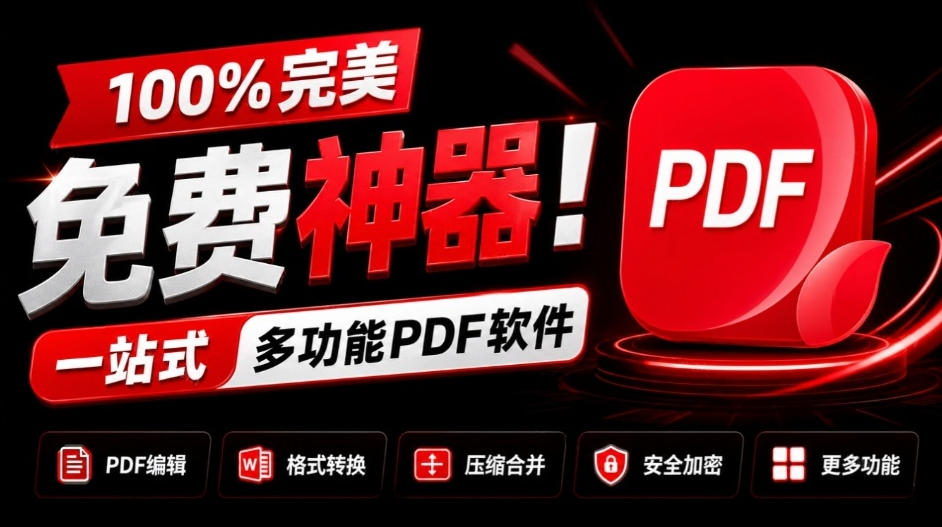
100% perfect free tool! One-stop multi-function PDF software: PDF convert, compress, edit etc., minimal, no ads, so nice - JOPDF

Study material — included with membership
Get Membership
Open-Source Desktop Remote Tool, Beats Paid Versions! Free for Personal and Commercial Use Unlimited, Cross-Platform, HopToDesk Remote Control

Study material — included with membership
Get Membership
Latest K-12 Textbook Downloader: Whole-Grade Resource Download, Courseware, Video, Audio in One Click

Study material — included with membership
Get Membership
HuyanBao: free blue-light eye-care app with pet break reminders
Study material — included with membership
Get Membership
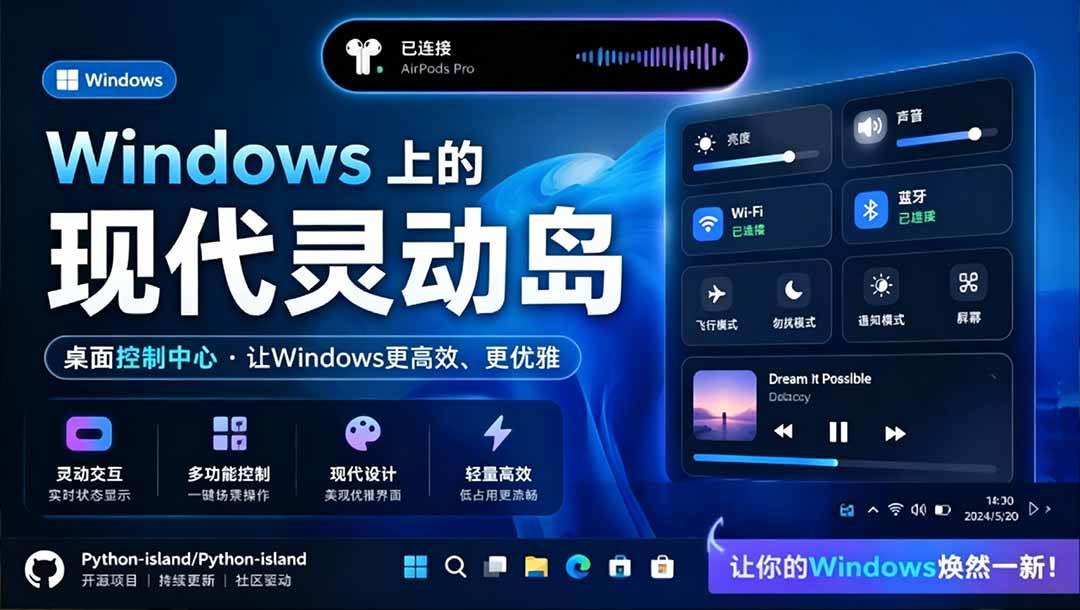
Windows Can Have a Desktop Dynamic Island Too! A Modern System Control Center — Give Your PC a Black Notch, PyIsland
Study material — included with membership
Get Membership
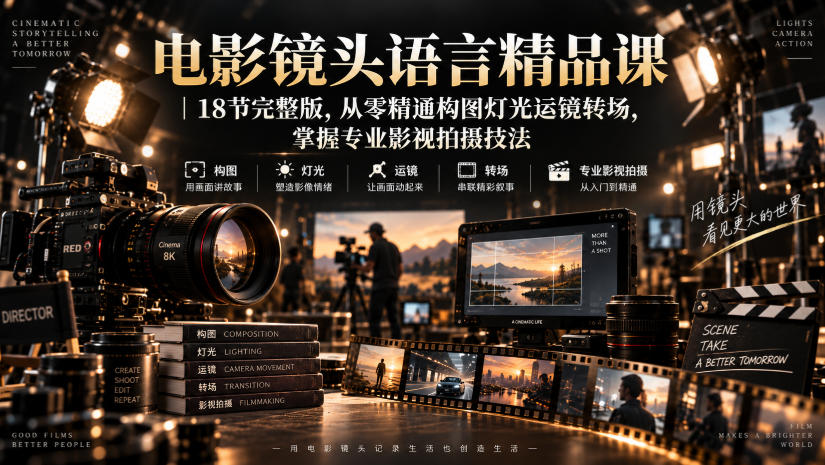
3D Simulated Comic Drama Production: Seedance2.0 Full-Process Practical Course - From Zero to One High-Quality Comic Drama Creation

Study material — included with membership
Get Membership
Win/Mac Dual Support! Latest Permanent Lifetime Version, Supports Old Photo Restoration, Image Sharpening and Lossless Upscaling Tool, Aiarty Image Enhancer

Study material — included with membership
Get Membership
Online Video Course: Github Open-Source Bilibili Video Download Tool! Supports 8K and Dolby Vision Bilibili Video Batch Download Tool, Easy to Use Bilidown

China Projects — one person, one company. No team, no middlemen. Every model here is already proven in China. Join the membership, study it as reference, and launch it locally in your country.