-
Solo Business Courses
-
 Others
-
Overseas Tutorials
-
Photography & Editing
-
Community & Private Domain
-
Self-Media Writing & Copywriting
-
Side Income Projects
-
E-commerce
-
Short Video & Live Streaming
-
Artificial Intelligence (AI)
-
Software & Tools
-
Operating Systems
-
Plugins & Scripts
-
MacOS Software
-
Android Software
-
Windows Software

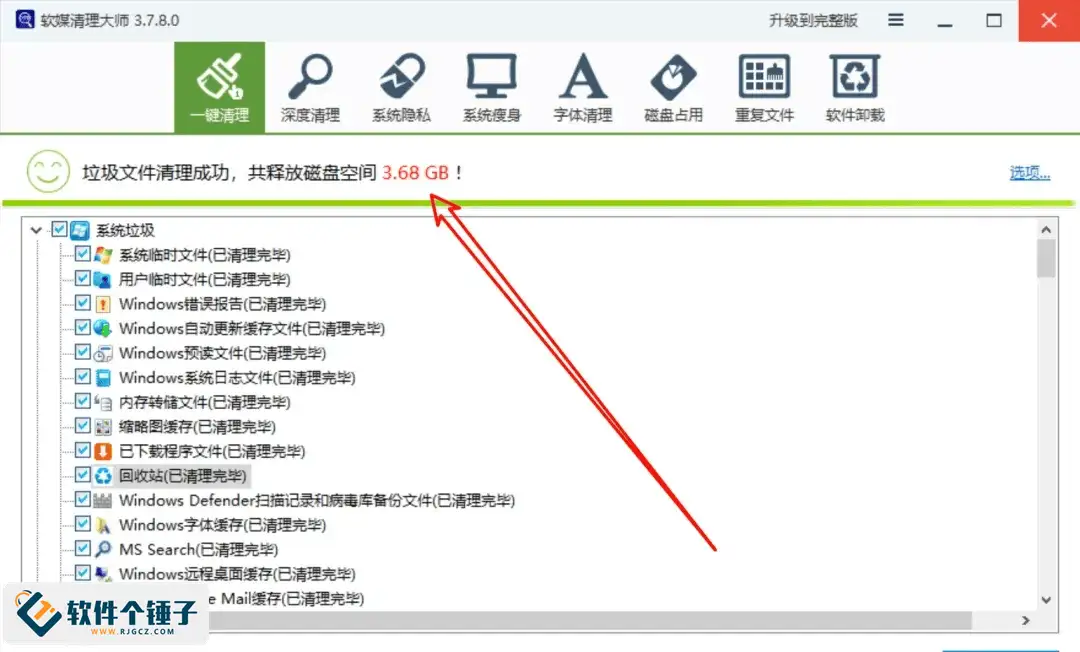
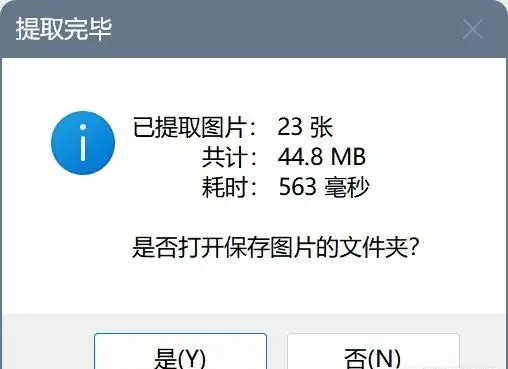
Extract HD Images from Office — OfficeImagesExtractor v1.0 (Single File)
-
Game Gold-Farming Money-Making Plan: Earn 1k+ Daily, a Stable 3-Year Project Anyone Can Do in Spare Time [Revealed]
Study material — included with membership Get Membership -
Hot-game fully-automated earning: 500+ a day, no experience, simple operation - the steadiest long-term game-earning side hustle (revealed)
Study material — included with membership Get Membership -
FlyingMouse earns merit this time! Don't panic at Windows format problems — the open-source FlyingMouse format conversion tool helps, a popular GitHub gem
Study material — included with membership Get Membership -
Douyin Product-Selling Coaching Bootcamp: No On-Camera Appearance Needed, Newbies Can Produce Selling Short Videos by Following the Steps
Study material — included with membership Get Membership -
First-release game gold-farming money plan: 1K+ a day, ordinary people in spare time
Study material — included with membership Get Membership






-
FlyingMouse earns merit this time! Don't panic at Windows format problems — the open-source FlyingMouse format conversion tool helps, a popular GitHub gem
Study material — included with membership Get Membership -
LuDaShi v6.1024.4105.1121 Slim Single File
Study material — included with membership Get Membership -
2D Cartoon Animation Software Moho Pro v14.3
Study material — included with membership Get Membership -
Video Editor Aiseesoft Filmai v1.0.18
Study material — included with membership Get Membership -
To-Do Microsoft To Do v2.147 Free
Study material — included with membership Get Membership -
PR/AE/DaVinci/FCPX video Plugin Nobe OmniScope Win1.11.15 / Mac1.10.138
Study material — included with membership Get Membership


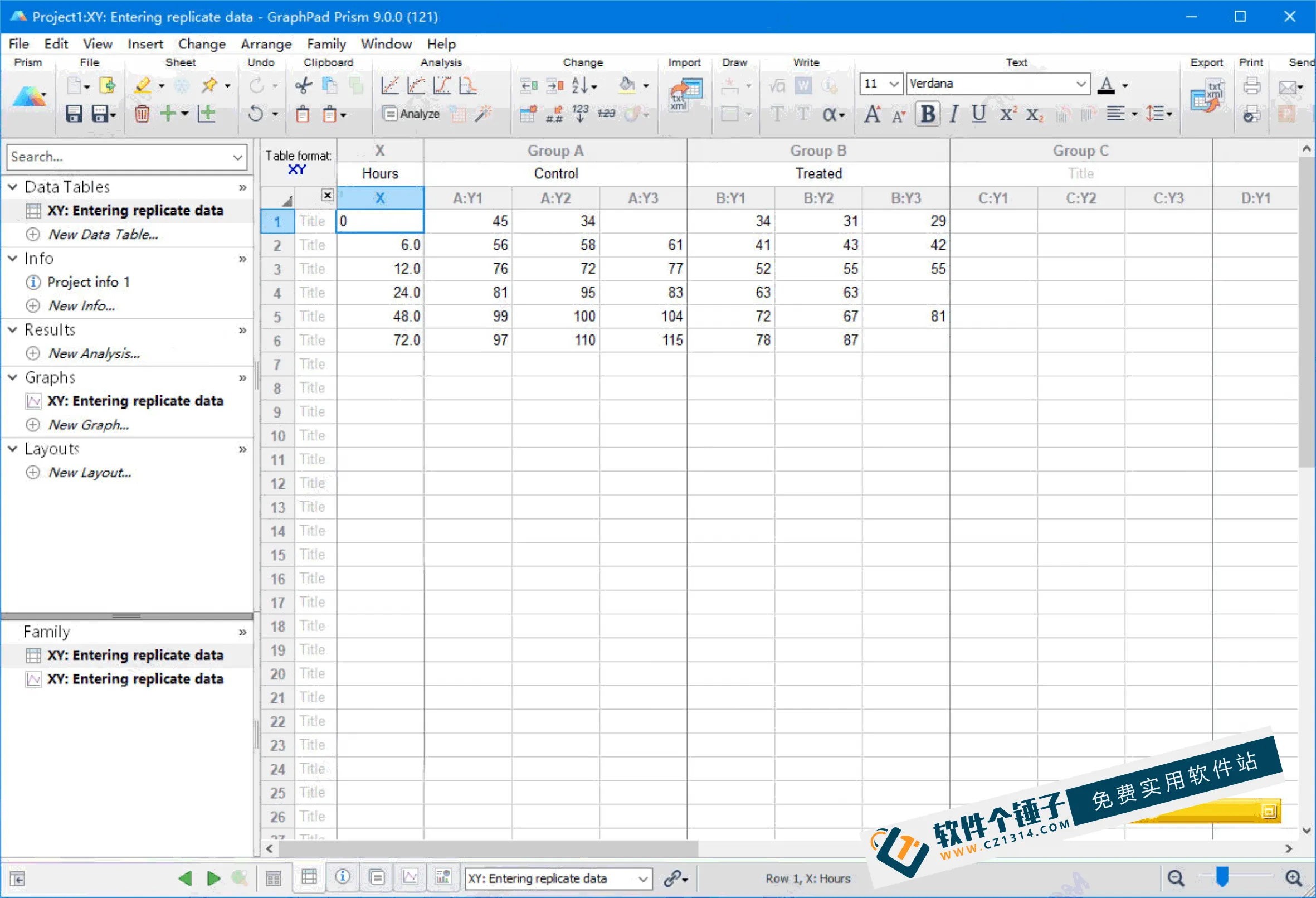
Ever faced this: you obtained a tens- or hundreds-of-MB PPT and want to extract its HD images for rework, only to be stopped by PPT's low-quality save-as. Though the images in the doc were originally high quality, the export is blurry — frustrating. Whether beautiful images in Word or critical ones in Excel, you've tried all kinds of screenshot tools, yet the result still disappoints. Is exporting HD images really that hard?
\ \
It quickly extracts all embedded images from Office docs, preserving exact size and quality — far better than Office's built-in save-image.
\ \Main features of the software
\ \- \
\
- Extract all images from Office documents as-is:It extracts images from Office documents as-is, preserving original dimensions and quality, unaffected by any cropping or rotation in the document. \ \
- Rich export options:On export you can limit image types and size to avoid unnecessary images. It also checks free space before export, so it won't be interrupted by low disk. \ \
- Supports exporting audio and video files:Beyond images, it extracts embedded audio and video from Office docs, grabbing all media in one go. \ \
- Compatible with Word, Excel and PPT documents:It works with Word, Excel and PPT documents saved in Office 2007+ formats (i.e. *.docx, *.xlsx, *.pptx). Merely renaming an old-format file's extension to sneak by likely won't work. \ \
- Supports drag-and-drop of files and folders:Drag files or folders anywhere into the main window; it smartly detects whether you want to extract images inside or save images to that folder.
 \
\
How image export works
\ \Since MS Office 2007, documents are saved by default in Office Open XML (OOXML) — actually compressed files bundling multiple formats together. These docs keep embedded images, audio and video intact, and can be extracted with WinRAR, 7-zip etc. In Office documents, images, audio and video are stored at these paths: Word files in \\word\\media\\,Excelfilein \\xl\\media\\,PowerPointfilein \\ppt\\media\\。

Without this tool, rename the Office file's extension to .zip and extract with WinRAR or 7-zip; browse that path to pull out images and media.
\ \\ \ \ \
Related Courses
Super local toolbox! Built-in screen recording, audio/video cutting & merging, video compression & extraction, forever free - Kedou Video Converter
100% perfect free tool! One-stop multi-function PDF software: PDF convert, compress, edit etc., minimal, no ads, so nice - JOPDF

Open-Source Desktop Remote Tool, Beats Paid Versions! Free for Personal and Commercial Use Unlimited, Cross-Platform, HopToDesk Remote Control

Latest K-12 Textbook Downloader: Whole-Grade Resource Download, Courseware, Video, Audio in One Click

HuyanBao: free blue-light eye-care app with pet break reminders
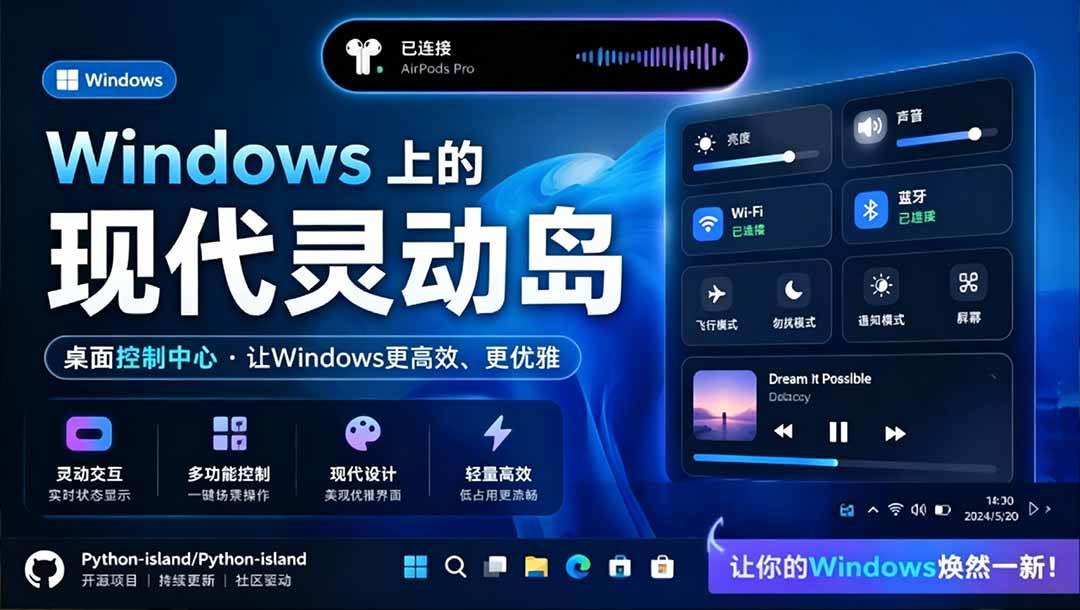
Windows Can Have a Desktop Dynamic Island Too! A Modern System Control Center — Give Your PC a Black Notch, PyIsland

3D Simulated Comic Drama Production: Seedance2.0 Full-Process Practical Course - From Zero to One High-Quality Comic Drama Creation

Win/Mac Dual Support! Latest Permanent Lifetime Version, Supports Old Photo Restoration, Image Sharpening and Lossless Upscaling Tool, Aiarty Image Enhancer

Online Video Course: Github Open-Source Bilibili Video Download Tool! Supports 8K and Dolby Vision Bilibili Video Batch Download Tool, Easy to Use Bilidown