-
Solo Business Courses
-
 Others
-
Overseas Tutorials
-
Photography & Editing
-
Community & Private Domain
-
Self-Media Writing & Copywriting
-
Side Income Projects
-
E-commerce
-
Short Video & Live Streaming
-
Artificial Intelligence (AI)
-
Software & Tools
-
Operating Systems
-
Plugins & Scripts
-
MacOS Software
-
Android Software
-
Windows Software
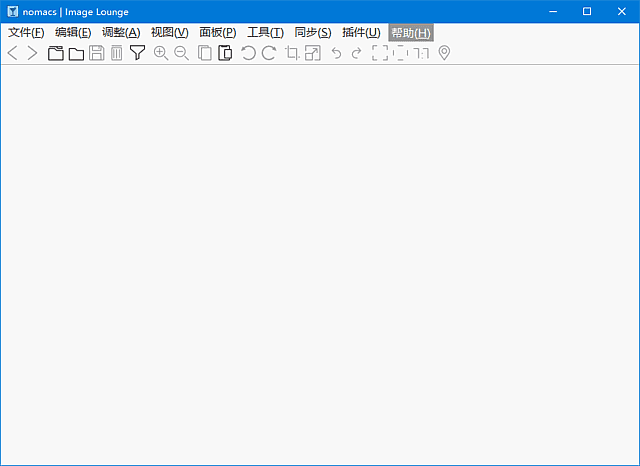
Free Commercial-Use Image Viewer — nomacs v3.22.4
-
Game Gold-Farming Money-Making Plan: Earn 1k+ Daily, a Stable 3-Year Project Anyone Can Do in Spare Time [Revealed]
Study material — included with membership Get Membership -
Hot-game fully-automated earning: 500+ a day, no experience, simple operation - the steadiest long-term game-earning side hustle (revealed)
Study material — included with membership Get Membership -
FlyingMouse earns merit this time! Don't panic at Windows format problems — the open-source FlyingMouse format conversion tool helps, a popular GitHub gem
Study material — included with membership Get Membership -
Douyin Product-Selling Coaching Bootcamp: No On-Camera Appearance Needed, Newbies Can Produce Selling Short Videos by Following the Steps
Study material — included with membership Get Membership -
First-release game gold-farming money plan: 1K+ a day, ordinary people in spare time
Study material — included with membership Get Membership






-
FlyingMouse earns merit this time! Don't panic at Windows format problems — the open-source FlyingMouse format conversion tool helps, a popular GitHub gem
Study material — included with membership Get Membership -
LuDaShi v6.1024.4105.1121 Slim Single File
Study material — included with membership Get Membership -
2D Cartoon Animation Software Moho Pro v14.3
Study material — included with membership Get Membership -
Video Editor Aiseesoft Filmai v1.0.18
Study material — included with membership Get Membership -
To-Do Microsoft To Do v2.147 Free
Study material — included with membership Get Membership -
PR/AE/DaVinci/FCPX video Plugin Nobe OmniScope Win1.11.15 / Mac1.10.138
Study material — included with membership Get Membership


nomacs image viewer download
Free open source image browsing and comparison complete tutorial
\
\
\ \ 🔀 Sync comparison
\ \ ⚡ Lightweight and fast
When photographers cull, don't they often toggle between several viewers? The built-in viewer opens RAW slowly and can't open PSD; switching to PS or LR is heavy and slow. Worse, picking several shots of the same position/scene means flipping between windows until your eyes blur.nomacs is made for these scenarios free image viewerIt combines quick browsing, multi-window synchronized zooming and metadata reading into one — lightweight yet capable.
\ \What is nomacs? A complete guide to the free open source image viewer
\ \nomacs is afree, open source, cross-platform image viewer, compatible with JPG, PNG, BMP, GIF, TIFF, SVG, camera RAW and layered PSD files. In short, it's an image viewer that 'opens fast, views RAW, and compares multiple images'. Small installer, fast startup, and it doesn't hog memory like pro editors — ideal for quickly screening large batches of image assets.
\ \Its most standout difference isMulti-window sync zoomIt opens multiple images at once; scrolling and zooming link windows, so you spot subtle differences between versions at a glance. For A/B comparison of exposure, composition and color, this is quite useful.
\ \nomacs use cases overview
\ \- \
\
- Photographers quickly culling shots — Use multi-window synchronized zoom to compare photos of the same scene and quickly pick out satisfying compositions \ \
- Designers screening assets — Open multiple mockups at once for side-by-side observation and spot deviations in color and detail \ \
- RAW and PSD quick preview — no need to open heavyweight photo editing software to browse assets, saving waiting time \ \
- picture format and size batch conversion — complete format conversion directly during browsing, reducing tool switching \ \
- Linux / macOS desktop image viewing — when built-in image viewing tools fall short, as a cross-platform alternative \ \
nomacs vs similar image viewers comparison
\ \| Dimension | \ \nomacs | \ \IrfanView | \ \XnView MP | \ \
|---|---|---|---|
| Licensing method | \ \Free and open source (GPL) | \ \Free but not open source | \ \Free for personal use / commercial use requires notice | \ \
| Cross-platform support | \ \Windows/Linux/macOS | \ \Mainly Windows | \ \Win/Mac/Linux | \ \
| Multi-window sync zoom | \ \⭐⭐⭐⭐⭐ Core specialty | \ \⭐⭐ Average plugins | \ \⭐⭐⭐ Limited support | \ \
| Interface and ease of use | \ \Simple and modern, multi-language | \ \Feature-rich, interface on the traditional side | \ \Comprehensive features, slightly more complex | \ \
nomacs five core features detailed explanation
\ \1️⃣ Multi-format image viewing
\ \It supports JPEG, PNG, BMP, GIF, TIFF, SVG and more, and browses camera RAW and layered PSD — no switching tools by format. Example:Open software → drag in RAW or PSD file → directly view preview
2️⃣ Multi-window synchronized zoom comparison
\ \Using fast preview, it shows images in multiple view regions with linked zoom/pan, turning spot-the-difference from switching back and forth into side-by-side viewing. Example:Select multi-window mode → drag in 2-4 images → scroll to zoom with synchronized linked movement
3️⃣ EXIF metadata and histogram
\ \It reads a photo's EXIF settings and shows a brightness histogram, helping judge over/under-exposure and check aperture, shutter and ISO. Example:Open image → view EXIF on the side panel → switch to histogram to view image
4️⃣ Basic editing and color adjustment
\ \Built-in pen, line, arrow, rectangle and selection tools, plus brightness/contrast. Great for quick marking during culling without opening pro editing. Example:Open nomacs → open the image in the multi-window comparison area → save a copy
5️⃣ Batch format conversion and plugin extensions
\ \Supports batch conversion of multiple images to a unified format and size, and also provides plugins and a scripting system that users can extend as needed. Example operation:Select multiple images → batch conversion → select output format and target size
nomacs screenshot
\ \
| Use case | \ \Input → output highlights | \ \Processing workflow | \ \Reviews | \ \
|---|---|---|---|
| Case 1 Photographer selecting photos from the same location | \
\
Input:12 RAW photos taken at the same location, with slight differences in lighting \ \ Output:Use multi-window synchronized zoom comparison to quickly pick the 2 best photos in composition and expression | \
\
12 RAW photos | \ \Comparison is most efficient | \ \
| Case 2 Screening multiple versions of a design draft | \
\
Input:5 PSD versions of the same Banner with different differences for review \ \ Output:Open versions side by side for comparison, and accurately identify detailed differences with the help of alignment and overlay | \
\
5 PSD versions | \ \Can compare without opening PS | \ \
| Case 3 Batch format conversion of asset library | \
\
Input:460 PNG images need to be uniformly converted to JPG and compressed in size \ \ Output:Complete the batch conversion in one go, and export to an independent directory | \
\
460 PNG images | \ \Batch conversion is more efficient | \ \
nomacs tutorial: from installation to multi-window comparison
\ \Step 1: Download and install nomacs
\ \Go to the software tool site to download the nomacs installation package ([To verify: version number TBD]), choosing the Windows, Linux or macOS build. Install is simple — click next through — and the app is small, with little disk impact.
\ \Step 2: Enable the settings you recognize from the open method and the thumbnail panel
\ \On first launch, if you want double-clicked images to open nomacs, associate common image formats to it in the system. Also enable the left thumbnail panel, so you see other files in the same folder while viewing the current one — easier browsing.
\ \Step 3: Open multiple windows at the same step to release and compare
\ \Find the multi-window or split-view option in the menu and drag images to compare into different windows. Enable synchronized zoom and all windows scale together as you scroll. This is nomacs' core feature — worth a few minutes to learn.
\ \Step 4: Investigate EXIF and straighten images to help judge and crop
\ \Enable EXIF info and histogram in the side panel; while culling you see aperture, shutter and ISO directly, and judge exposure via the histogram. This is especially useful for those picking 'technically qualified' photos.
\ \Step 5: Batch conversion and shortcuts — practice makes perfect
\ \For batch export, select files and run the 'batch conversion' flow, specifying target format and size. In daily use, learning a few hotkeys (page flip, zoom, fullscreen) significantly boosts browsing efficiency. It supports multilingual UI — switch to Chinese in settings.
\ \nomacs vs IrfanView vs XnView MP: how to choose
\ \| Selection criteria | \ \nomacs | \ \IrfanView | \ \XnView MP | \ \
|---|---|---|---|
| Who It's For | \ \Photo selection, design comparison | \ \Heavy format conversion and batch processing | \ \Browsing + management + conversion, comprehensive | \ \
| Paid and commercial use | \ \Open source and free, business-friendly | \ \Free version, commercial use requires paid license | \ \Personal free, commercial use requires paid license | \ \
| Cross-platform | \ \Win/Linux/macOS | \ \Mainly Windows | \ \Win/Mac/Linux | \ \
| Rating | \ \⭐⭐⭐⭐⭐ Excellent for comparison scenarios | \ \⭐⭐⭐⭐ Old brand, stable | \ \⭐⭐⭐⭐ Comprehensive features | \ \
FAQ
\ \Summary: Is nomacs suitable for you?
\ \nomacs The core problem it solves is ”fast viewing, accurate comparison, and opening mixed formats”. When the built-in viewer can't open RAW or PSD, or multi-image comparison is awkward, it is a low-cost, full-featured alternative. It suits photography enthusiasts, designers, asset organizers, and users who want a consistent experience on Linux or macOS. If your main goal is retouching rather than viewing, it works best as a ”pre-filter tool” before your retouching software. We suggest installing it, trying one multi-window comparison and one batch conversion, and seeing whether it fits your workflow before committing long-term.
\ \ \ \Related Courses
WeChat Multi-Instance & Anti-Recall Tool WeChatHooks v1.2-3 Single-File Mac
Apple TNT Mind-Mapping App SimpleMind Pro for Mac v2.3.5 Official Free Edition
Mac WeChat Plugin WeChatHooks v1.2.4 Free - Multi-Account & Anti-Recall
AI Smart Cutout Tool XianYi AI Cutout v3.1 Win/Mac Offline Version Supports Batch Cutout and AI Removal
3D Fashion Design Software Marvelous Designer Win2024.2.113/Mac7.5
Vector Editor / UI-UX Tool Sketch Mac2025.2.1 Free
Sogou Pinyin Input Win16.4.0.3497 / Mac6.18.1.10104
3D Modeling Renderer The Foundry Modo Win17.1v1 / Mac15.1v2
DB Management TablePlus Win26.9.8 / Mac6.4.4

P2P File Seeding Sharing Software FrostWire v3.0.15.769 Win/Mac