-
Solo Business Courses
-
 Others
-
Overseas Tutorials
-
Photography & Editing
-
Community & Private Domain
-
Self-Media Writing & Copywriting
-
Side Income Projects
-
E-commerce
-
Short Video & Live Streaming
-
Artificial Intelligence (AI)
-
Software & Tools
-
Operating Systems
-
Plugins & Scripts
-
MacOS Software
-
Android Software
-
Windows Software



Batch Video Watermark Tool — DikDik X64 v4.3.6
-
Game Gold-Farming Money-Making Plan: Earn 1k+ Daily, a Stable 3-Year Project Anyone Can Do in Spare Time [Revealed]
Study material — included with membership Get Membership -
Hot-game fully-automated earning: 500+ a day, no experience, simple operation - the steadiest long-term game-earning side hustle (revealed)
Study material — included with membership Get Membership -
FlyingMouse earns merit this time! Don't panic at Windows format problems — the open-source FlyingMouse format conversion tool helps, a popular GitHub gem
Study material — included with membership Get Membership -
Douyin Product-Selling Coaching Bootcamp: No On-Camera Appearance Needed, Newbies Can Produce Selling Short Videos by Following the Steps
Study material — included with membership Get Membership -
First-release game gold-farming money plan: 1K+ a day, ordinary people in spare time
Study material — included with membership Get Membership






-
FlyingMouse earns merit this time! Don't panic at Windows format problems — the open-source FlyingMouse format conversion tool helps, a popular GitHub gem
Study material — included with membership Get Membership -
LuDaShi v6.1024.4105.1121 Slim Single File
Study material — included with membership Get Membership -
2D Cartoon Animation Software Moho Pro v14.3
Study material — included with membership Get Membership -
Video Editor Aiseesoft Filmai v1.0.18
Study material — included with membership Get Membership -
To-Do Microsoft To Do v2.147 Free
Study material — included with membership Get Membership -
PR/AE/DaVinci/FCPX video Plugin Nobe OmniScope Win1.11.15 / Mac1.10.138
Study material — included with membership Get Membership



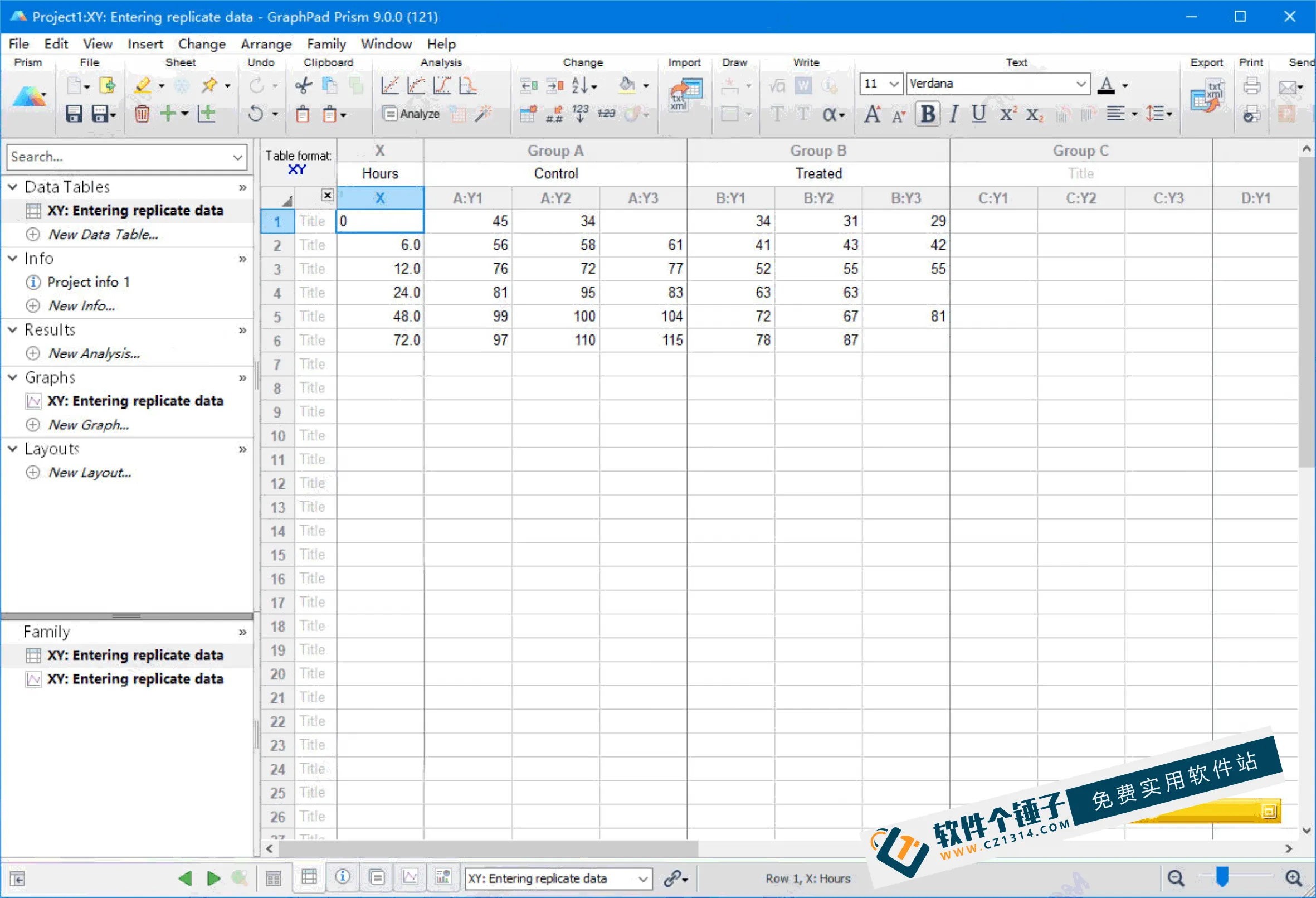
DikDik X64 v4.3.6 is a powerful batch video watermark removal and addition software. It not only supports batch processing, but also provides rich video editing features. Compared with many paid software on the market, DikDik is not only completely free, but also has outstanding performance, making it an essential tool for video processing users.
\ \Multifunctional integration, easy video editing
\ \In addition to batch adding or removing watermarks, DikDik also supports a variety of simple video editing operations. Users can easily perform video merging, splitting, subtitle editing, dubbing and other operations, and can even add mosaic masks with portrait tracking to meet all your video processing needs.
\ \
howRemove video watermarks
\ \DikDik is very simple. First click 'add files' or 'add folder' and pick the videos. Then click the watermark icon top-left to enter the edit window. To remove a watermark, just click 'clean mark' top-left and box the part you want gone.
\ \Add watermark feature
\ \To add a watermark, click the 'image' icon top-left for an image watermark, or the 'text' icon for a text watermark. You can right-click the image watermark to adjust opacity. In the right panel, set when the watermark appears, its duration, and movement effects like slow shrink or side-to-side motion.
\ \Batch processing is efficient and convenient
\ \DikDik supports batch processing. Just select a folder containing multiple video files, then click the "Run" button in the top-left corner, and the software will quickly process all files. After testing, the batch processing speed is satisfactory, suitable for users handling large batches of videos.
\ \
Chinese settings
\ \After running the program, follow the animated instructions to set the language. Once done, restart the program and the interface will switch to Simplified Chinese.
\ \Usage notes
\ \Please make sure to store the extracted files in a folder without Chinese characters, otherwise the software may not run properly.
\ \
Tutorial links
\ \For more usage tutorials, refer to the following videos:
\
\
videotutorial
Related Courses
Super local toolbox! Built-in screen recording, audio/video cutting & merging, video compression & extraction, forever free - Kedou Video Converter
100% perfect free tool! One-stop multi-function PDF software: PDF convert, compress, edit etc., minimal, no ads, so nice - JOPDF

Open-Source Desktop Remote Tool, Beats Paid Versions! Free for Personal and Commercial Use Unlimited, Cross-Platform, HopToDesk Remote Control

Latest K-12 Textbook Downloader: Whole-Grade Resource Download, Courseware, Video, Audio in One Click

HuyanBao: free blue-light eye-care app with pet break reminders
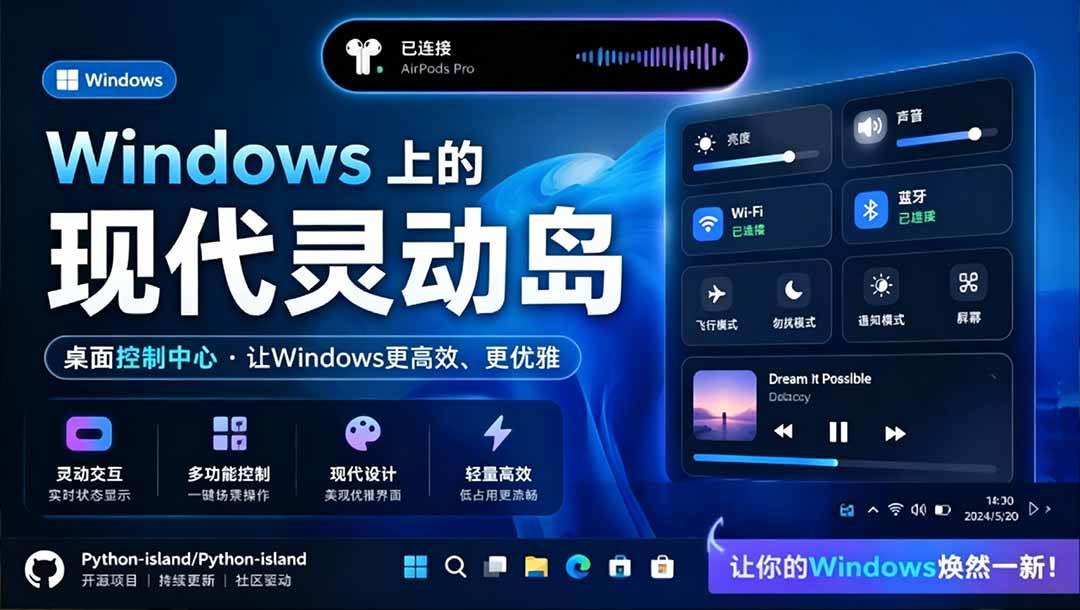
Windows Can Have a Desktop Dynamic Island Too! A Modern System Control Center — Give Your PC a Black Notch, PyIsland

3D Simulated Comic Drama Production: Seedance2.0 Full-Process Practical Course - From Zero to One High-Quality Comic Drama Creation

Win/Mac Dual Support! Latest Permanent Lifetime Version, Supports Old Photo Restoration, Image Sharpening and Lossless Upscaling Tool, Aiarty Image Enhancer

Online Video Course: Github Open-Source Bilibili Video Download Tool! Supports 8K and Dolby Vision Bilibili Video Batch Download Tool, Easy to Use Bilidown