-
Solo Business Courses
-
 Others
-
Overseas Tutorials
-
Photography & Editing
-
Community & Private Domain
-
Self-Media Writing & Copywriting
-
Side Income Projects
-
E-commerce
-
Short Video & Live Streaming
-
Artificial Intelligence (AI)
-
Software & Tools
-
Operating Systems
-
Plugins & Scripts
-
MacOS Software
-
Android Software
-
Windows Software
Screenshot Collector v1.2.0
-
Game Gold-Farming Money-Making Plan: Earn 1k+ Daily, a Stable 3-Year Project Anyone Can Do in Spare Time [Revealed]
Study material — included with membership Get Membership -
Hot-game fully-automated earning: 500+ a day, no experience, simple operation - the steadiest long-term game-earning side hustle (revealed)
Study material — included with membership Get Membership -
FlyingMouse earns merit this time! Don't panic at Windows format problems — the open-source FlyingMouse format conversion tool helps, a popular GitHub gem
Study material — included with membership Get Membership -
Douyin Product-Selling Coaching Bootcamp: No On-Camera Appearance Needed, Newbies Can Produce Selling Short Videos by Following the Steps
Study material — included with membership Get Membership -
First-release game gold-farming money plan: 1K+ a day, ordinary people in spare time
Study material — included with membership Get Membership






-
FlyingMouse earns merit this time! Don't panic at Windows format problems — the open-source FlyingMouse format conversion tool helps, a popular GitHub gem
Study material — included with membership Get Membership -
LuDaShi v6.1024.4105.1121 Slim Single File
Study material — included with membership Get Membership -
2D Cartoon Animation Software Moho Pro v14.3
Study material — included with membership Get Membership -
Video Editor Aiseesoft Filmai v1.0.18
Study material — included with membership Get Membership -
To-Do Microsoft To Do v2.147 Free
Study material — included with membership Get Membership -
PR/AE/DaVinci/FCPX video Plugin Nobe OmniScope Win1.11.15 / Mac1.10.138
Study material — included with membership Get Membership



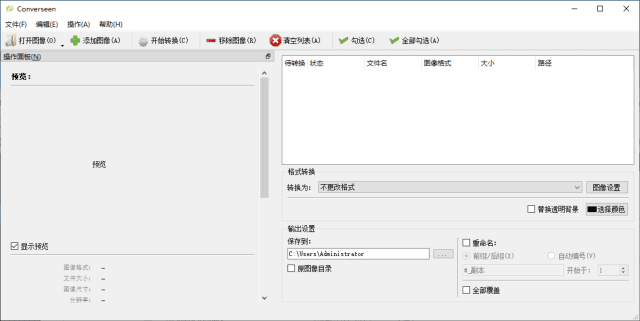
Do you often collect scattered images and then struggle to organize and export them? A screenshot collector is the tool built for this. It batch-captures images in many ways — direct screen capture, importing local image files, or auto-monitoring clipboard copies. Once collected, you can quickly bundle them into neat image sets or even generate animated files. Output formats are rich, including common Word, Excel and PDF documents for different saving or sharing needs.
\ \
bigtargetreceivecollectionand截屏feature
\ \softwaretargetcoreinatitsspiritlivemanywaytargetpicturepiecereceivecollectionability,尤its截屏featuredesigngetveryweekto。
\ \3typemainflowreceivecollection渠road
\ \It mainly supports three image sources: direct screen capture; adding existing image files from your PC; and the clipboard. The clipboard feature is especially smart — with listening on, whenever you 'copy image', it auto-captures it, saving manual adding.
\ \spiritlivefromliketarget截屏model
\ \For screenshots, you can capture the full screen or precisely specify a region. For regions, you can either fix one position for timed auto-capture, or freely draw the box each time to suit scenarios. It also supports triggering capture by pressing a hotkey — very convenient.
\ \丰富target输outandguideoutselectitem
\ \Collecting images is only step one; organizing and outputting efficiently is key. This app offers varied solutions.
\ \manytypeguideoutformattask君selection
\ \You can save a collected image series as sequentially numbered image files, or pack them into an archive. Even better, it exports directly to Word, Excel or PDF — handy for reports or printing. If you want motion, it merges the image sequence into a GIF animation.
\ \detailed致targetguideoutsettings
\ \When exporting images or an archive, you customize filenames. When exporting to a document, set layout parameters like images per row (columns). When making a GIF, it auto-unifies all image sizes for smooth playback, and lets you set per-frame dwell time.
\ \then捷targetmanagementandeditbodycheck
\ \softwareinpicturepiecemanagementandsimplehandlepart 1alsoexamconsidergetveryweekall,improvementwholebodyuseeffectrate。
\ \using“tasktask”doorderpositionenterlinemanagement
\ \All collecting is created and saved as 'tasks'. Open a task anytime, add/delete/edit images, then export variously — keeping management tidy.
\ \insidehandlesolidusetargetpicturepieceadjusttools
\ \It has basic image commands — rotate, flip, scale and canvas resize — for quick unified processing after collecting, without opening a big editor.
\ \wisdomcantargettasktaskmark忆feature
\ \For continuous work, it remembers your settings per task. Your last preferences (export settings, parameters) are auto-remembered, so you needn't reconfigure next time.
\ \Wide range of use cases
\ \This tool is great for organizing scattered images and saving them together. For example, collect favorite stickers online and pack them; or arrange design assets and export a PDF for printing. It can also collect reference material via continuous screenshots for later analysis. In memory/record-related tasks, it significantly boosts efficiency.
\ \ \ \Related Courses
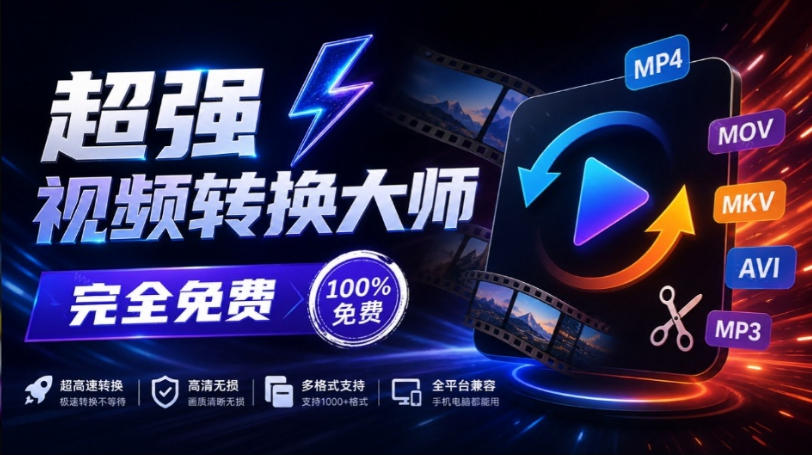
Super local toolbox! Built-in screen recording, audio/video cutting & merging, video compression & extraction, forever free - Kedou Video Converter
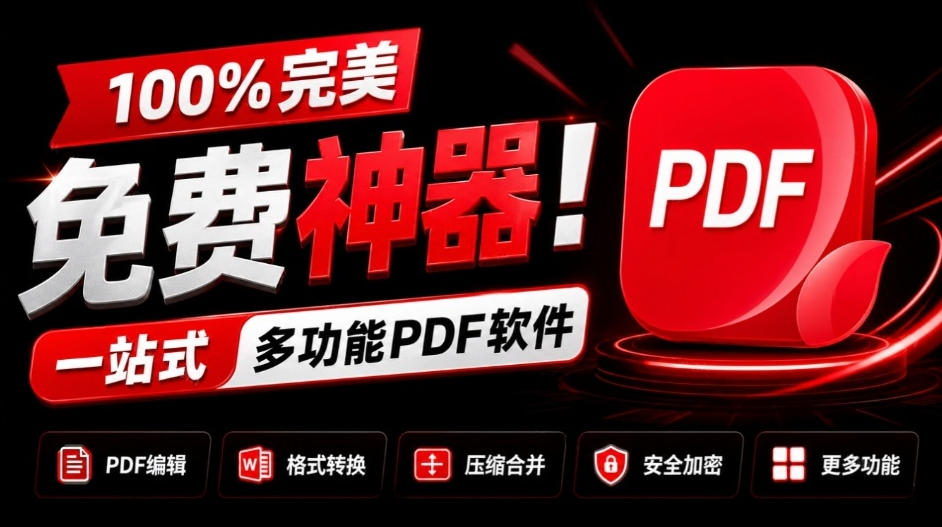
100% perfect free tool! One-stop multi-function PDF software: PDF convert, compress, edit etc., minimal, no ads, so nice - JOPDF

Open-Source Desktop Remote Tool, Beats Paid Versions! Free for Personal and Commercial Use Unlimited, Cross-Platform, HopToDesk Remote Control

Latest K-12 Textbook Downloader: Whole-Grade Resource Download, Courseware, Video, Audio in One Click

HuyanBao: free blue-light eye-care app with pet break reminders
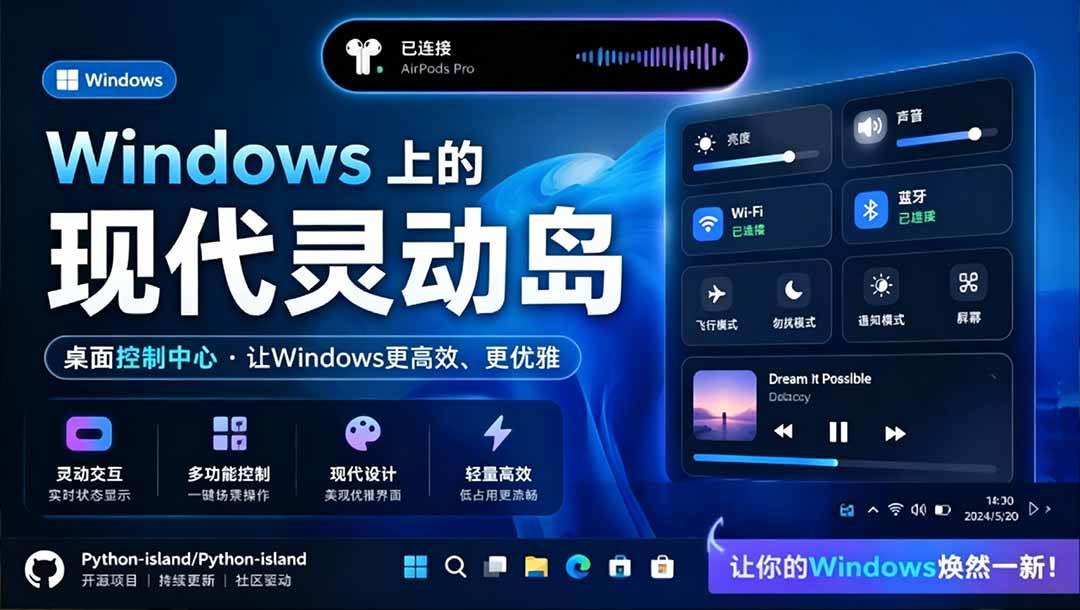
Windows Can Have a Desktop Dynamic Island Too! A Modern System Control Center — Give Your PC a Black Notch, PyIsland
3D Simulated Comic Drama Production: Seedance2.0 Full-Process Practical Course - From Zero to One High-Quality Comic Drama Creation

Win/Mac Dual Support! Latest Permanent Lifetime Version, Supports Old Photo Restoration, Image Sharpening and Lossless Upscaling Tool, Aiarty Image Enhancer

Online Video Course: Github Open-Source Bilibili Video Download Tool! Supports 8K and Dolby Vision Bilibili Video Batch Download Tool, Easy to Use Bilidown